Introduction
The image preview and save functionality in VS Code-R is not as user-friendly as that of Httpgd. When using Httpgd for plotting, a common issue arises: the size of the image elements is appropriate, but the font size of the text is too small.
This issue can generally be resolved in two ways: 1. Adjust the font size using Adobe Illustrator after exporting the image; 2. Adjust the font size of the exported image within VS Code.
This article discusses the second method.
Technique StudyEnabling the Httpgd Package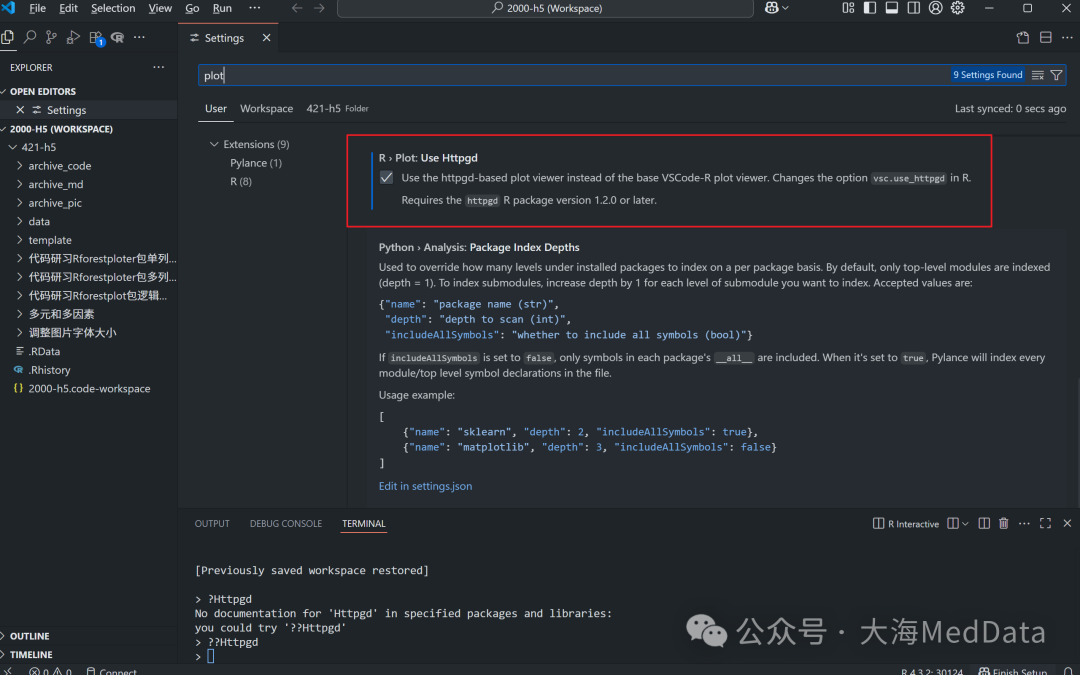 When previewing images using Httpgd, if the image displayed on the preview page is incomplete, the exported image will also only contain part of the content (i.e., it will be identical to the preview page).
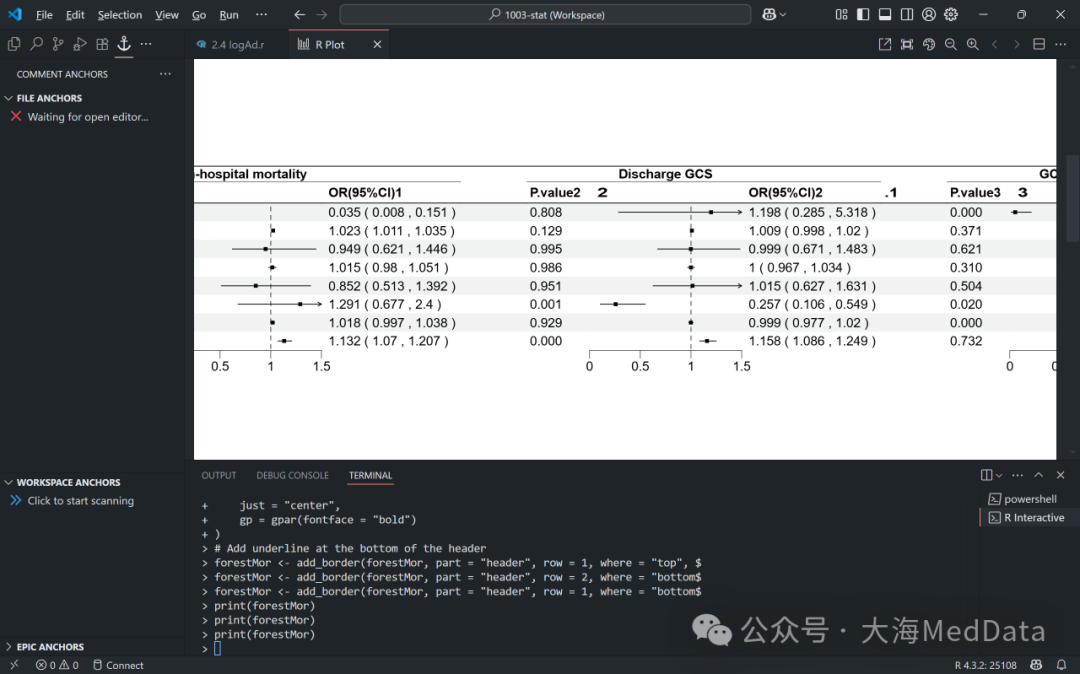 Click the three dots in the upper right corner and select the 【Export Plot】 option to export the image.
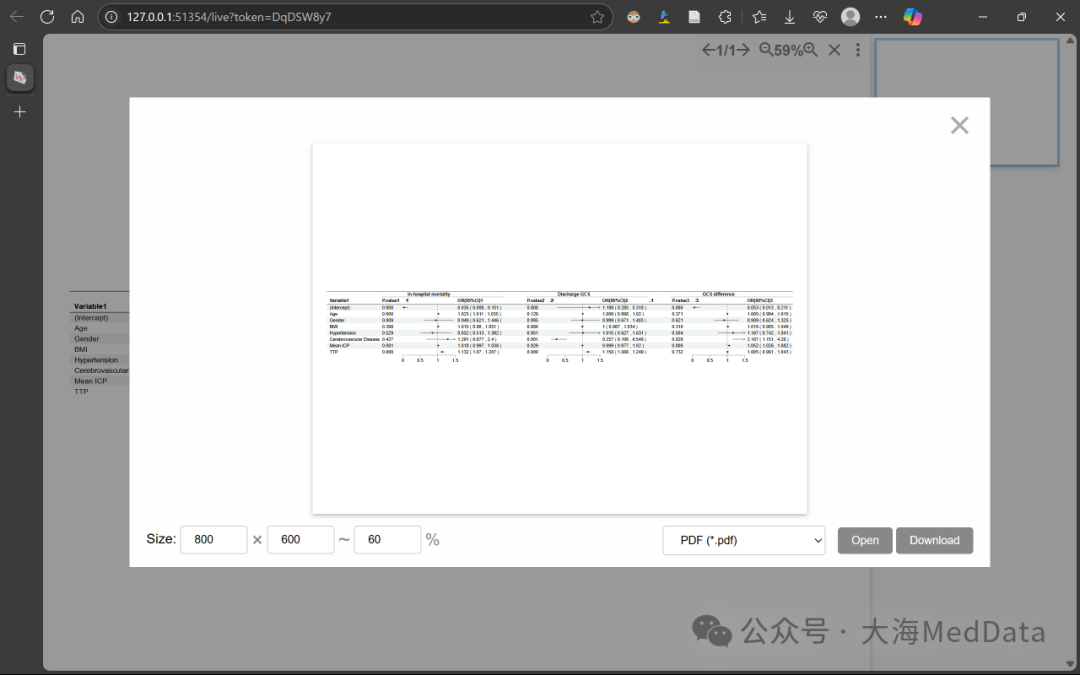
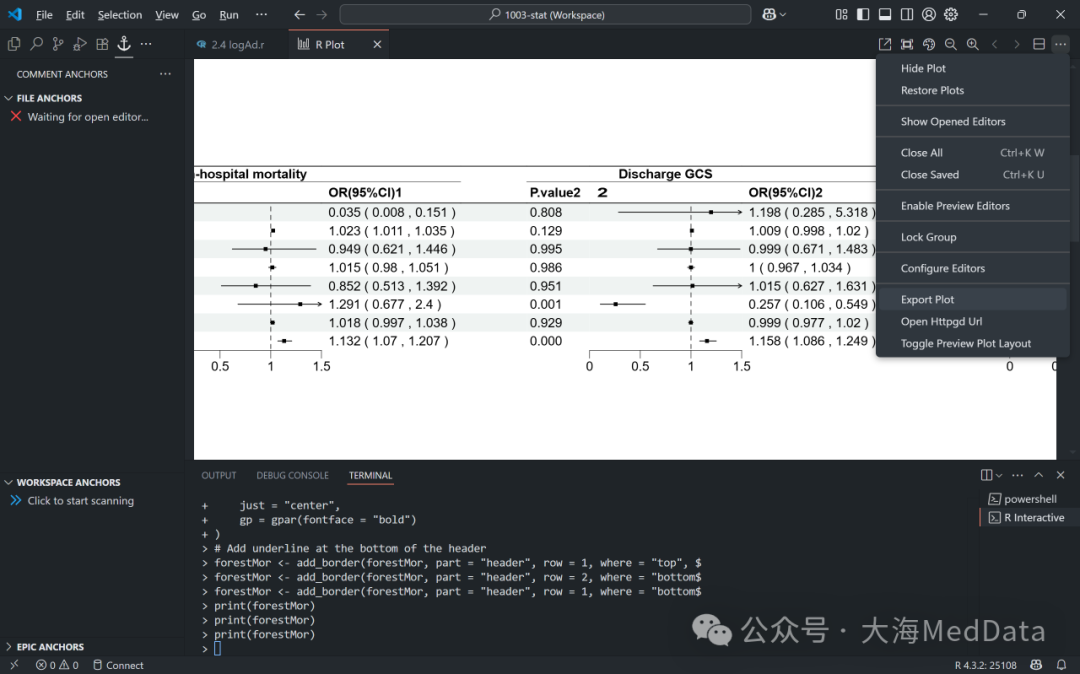 This is the image exported in PDF format, which is incomplete.
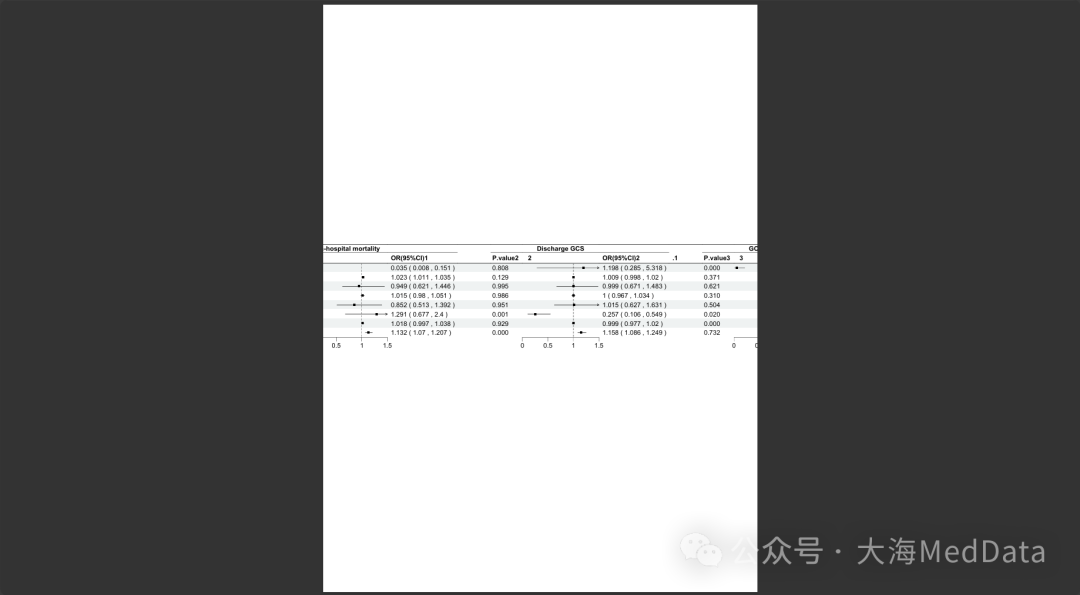 Select the zoom out button in the upper right corner of the preview page to reduce the image size, which will allow the entire content of the image to be displayed. Similarly, when exporting the image at this point, the image will also be complete.
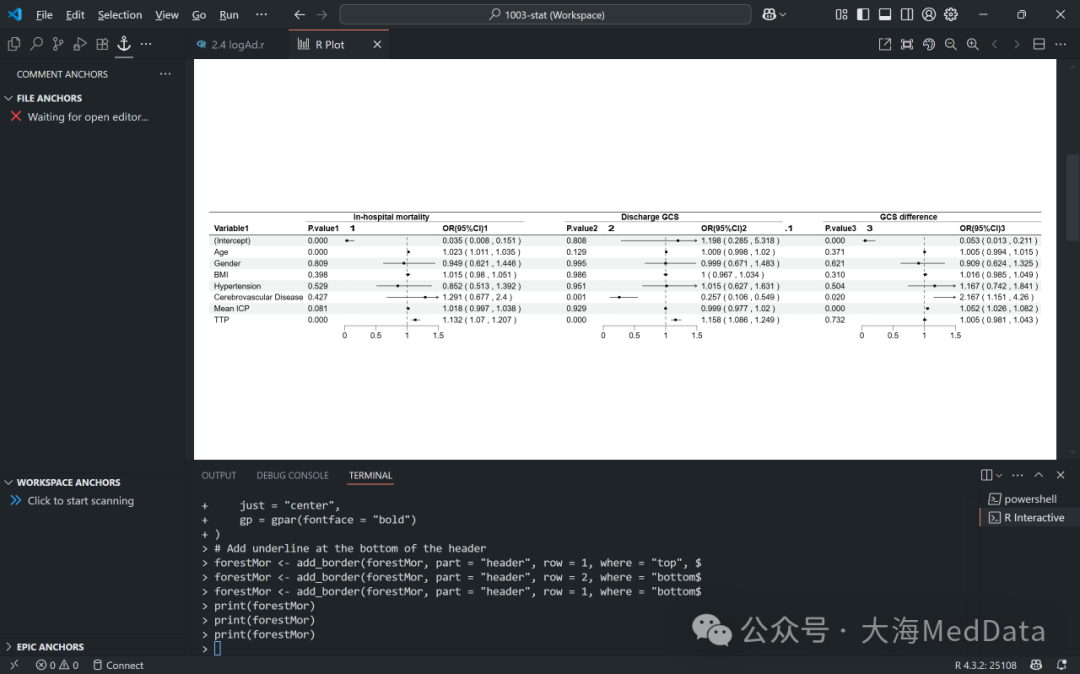 However, there is a problem: the preview page does not provide a zoom ratio indicator. When exporting multiple images, especially when needing to create a series of images, it is crucial to determine the zoom ratio to ensure consistency in the size of exported image elements and text font sizes. At this point, you can click the 【Open in External Browser】 option in the upper right corner to open the preview page in an external browser.
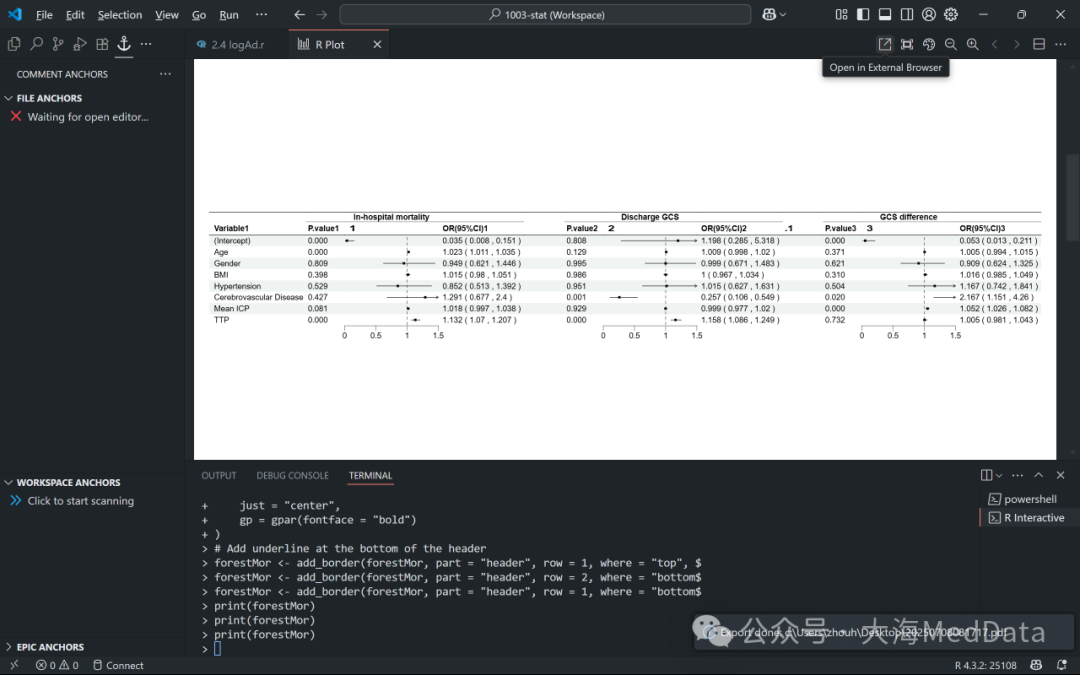 The preview page in the external browser looks like this, where you can check the zoom ratio in the upper right corner. Click the 【Export】 option to enter the image export page.
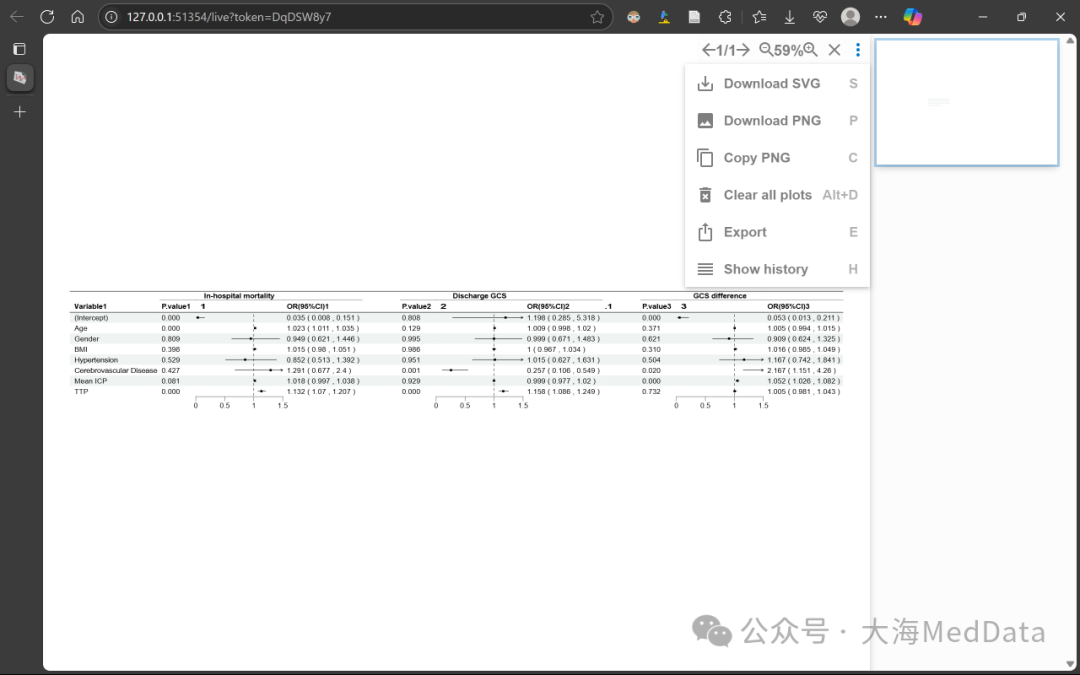 On the image export page, you can customize the width, height, and zoom ratio of the image.
 Returning to the initial issue, the Httpgd package has a rather peculiar design. The image size in the preview page is fixed, and clicking the zoom button mainly adjusts the font size and the size of text elements. For example, this is the original image in the preview page.
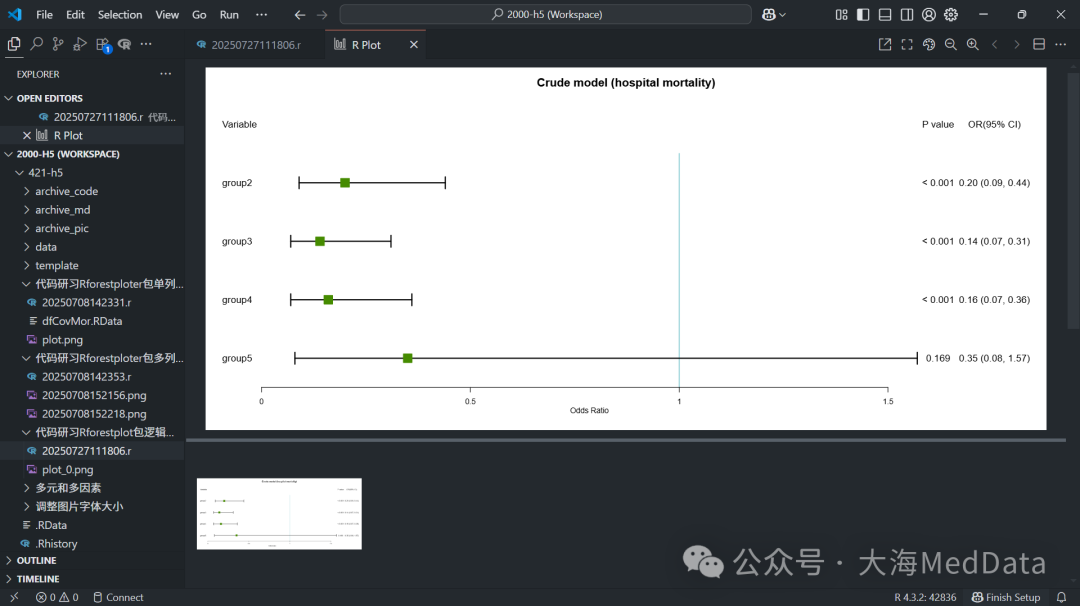 Clicking the zoom button enlarges the image, and both the font size of the text and the image elements will increase.
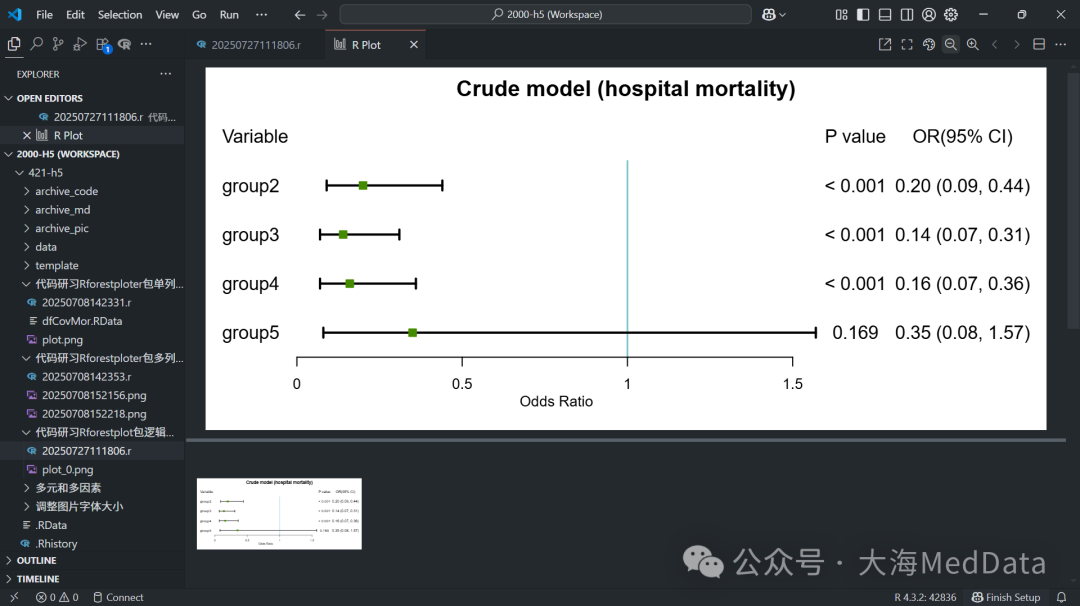 If you need to create a series of images, open the preview page in an external browser and export the images according to a fixed zoom ratio.