Beginner’s Diary: Getting Started with Python
My motivation to learn Python is very practical – I’ve had enough of repetitive manual tasks. While VB can handle most repetitive Excel operations, what about tasks outside of Excel?
Seeing many people talking about Python, I felt inspired to learn it. In fact, I considered learning Python a few years ago, but got stuck right at the beginning – because I didn’t know how to run the code. This article mainly discusses how to start learning Python, beginning with installing the Python interpreter and editor.
Interpreter
Python 3 – Download the latest version suitable for your computer from the official website.
1. Installation
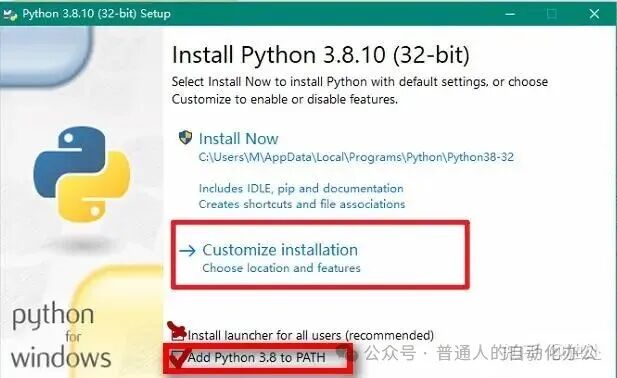
During installation, be sure to check the box for Add Python 3.x to PATH. If you want all users on the computer to have access, check the box for “Install launcher for all users”; then click “Customize installation” and set it as follows:
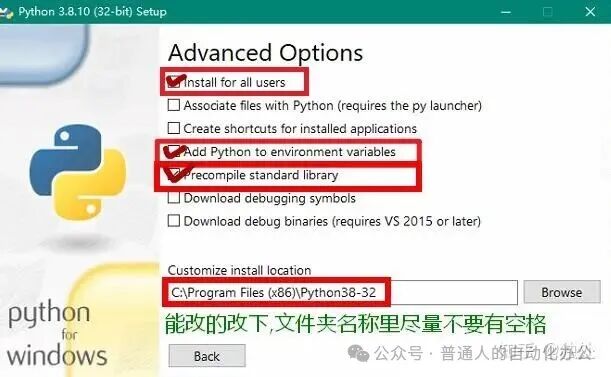
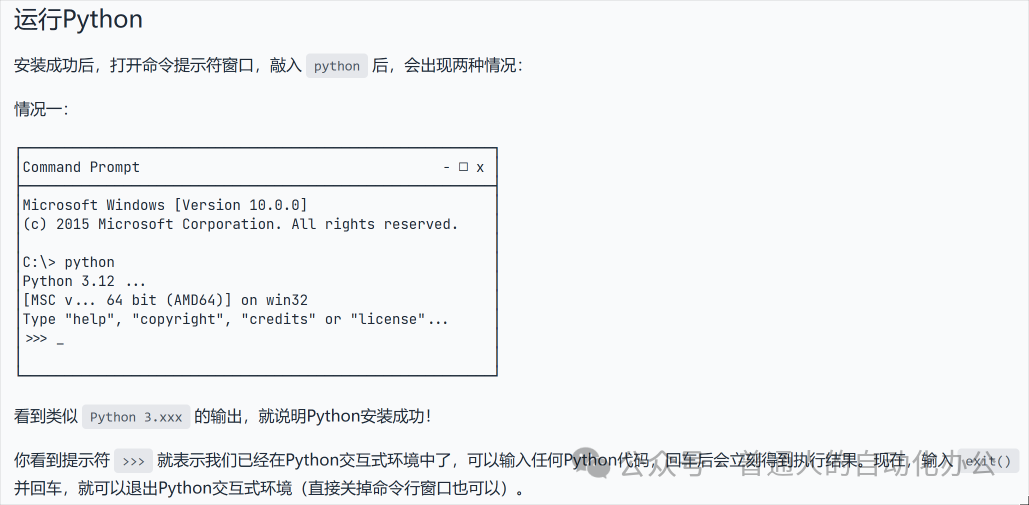
Then click install. After a successful installation, open the command prompt (cmd) window, type python, and if you see output similar to Python 3.xxx, it means Python has been installed successfully!

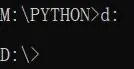
>>> If the cmd opens to a virtual disk: simply enter the drive letter of the physical disk you want to switch to, followed by a colon:, and then press enter.
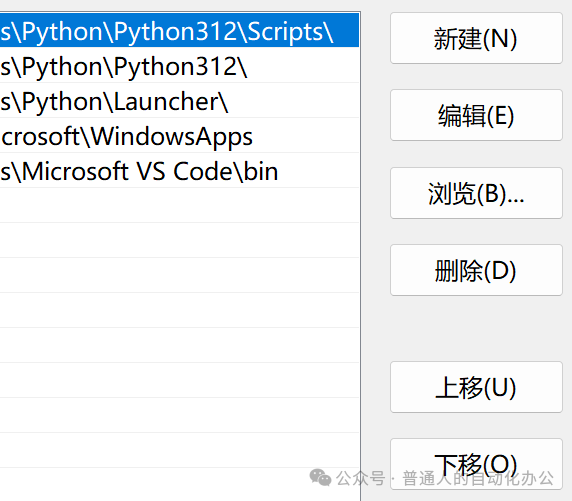
>>>If you type python in cmd and the Microsoft Store pops up, you need to set it in path: Right-click on ‘This PC’– Properties– Advanced system settings– Environment Variables, and select path in both user and system environment variables → Edit → move the python related variable up to WindowsApps before, and if there are no python related environment variables, you need to create one (for python installation directory) and then move it up to WindowsApps before.
Editor
For beginners, using the IDLE development environment is sufficient – the course Python Programming Design by Song Tian on China University MOOC. Search in the start menu, it’s enough for beginners; if you can’t find it, just switch to another editor, haha. You can also use Visual Studio Code – download the latest version from the official website and install it (it can be used for company projects for free, including commercial use); after installing VSCode, you need to install extensions like “Chinese”/“python” etc.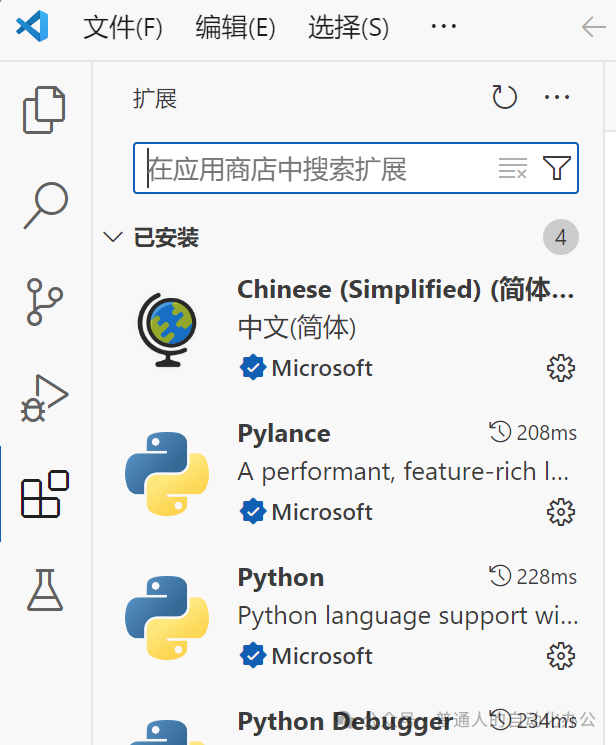 If you want to learn more powerful data processing capabilities or don’t want to install many third-party libraries separately, use Anaconda IDE (I didn’t install it correctly, haha).