 SoftwareDescription
[Name]: Keil uVision4 C51v901
[Language]: Chinese
[Installation Environment]: Windows 7 and above
[Download LinkThunder Cloud DiskDownload Link]:
https://pan.xunlei.com/s/VOSmTHEltStUYd6J1cqCzQGhA1?pwd=ncyx#
SoftwareIntroduction
Keil uVision is a professional and practical C language software development system. Compared to assembly language, C language has significant advantages in functionality, structure, readability, and maintainability, making it easy to learn and use. Keil provides a complete development solution that includes a C compiler, macro assembler, linker, library management, and a powerful simulation debugger, all integrated into a single development environment (uVision).
InstallationSteps
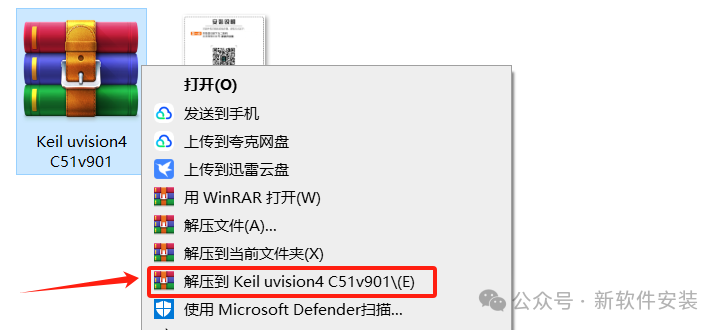
1. Select the downloaded 【Keil uVision4 C51v901】 compressed package, right-click and select 【Extract toKeil uVision4 C51v901】.
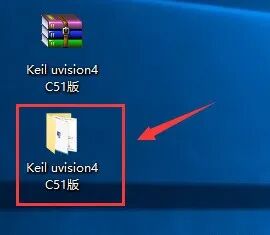
2. Double-click to open the 【Keil uVision4 C51v901】 folder.
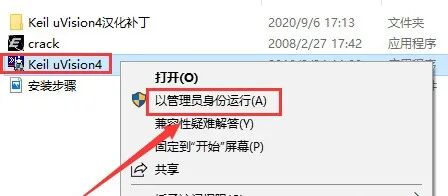
3. Select the 【Keil uVision4】 executable file, right-click and select 【Run as administrator】.
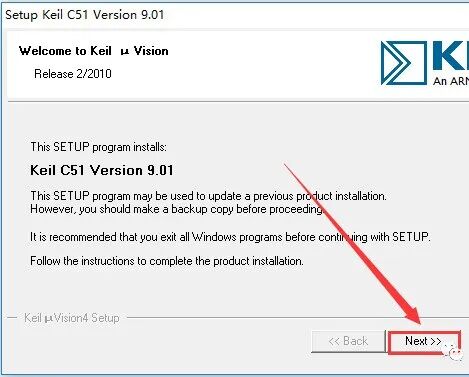
4. Click 【Next>>】.
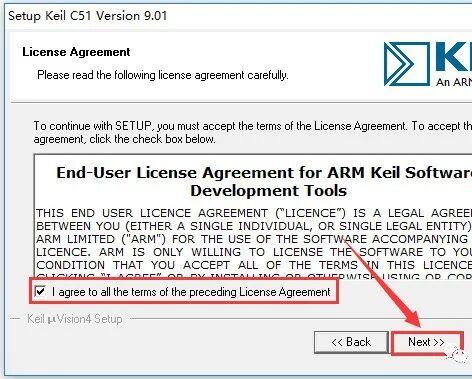
5. Check 【I agree to all terms…】 and then click 【Next>>】.
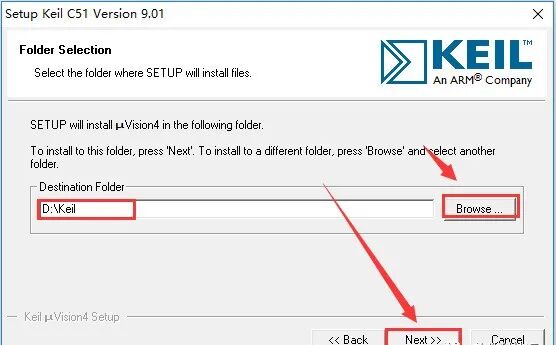
6. Click 【Browse…】 to change the installation path of the software, it is recommended to install it on a disk other than C drive, then click 【Next>>】.
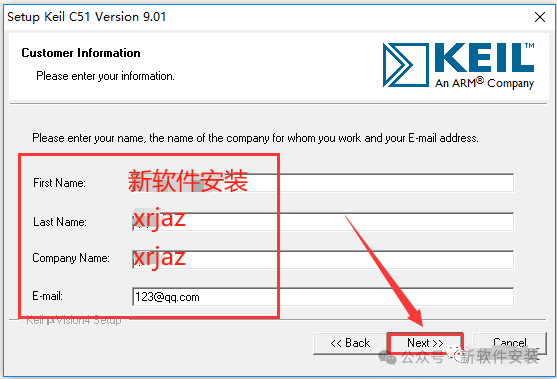
7. Fill in the information as desired, then click 【Next>>】.
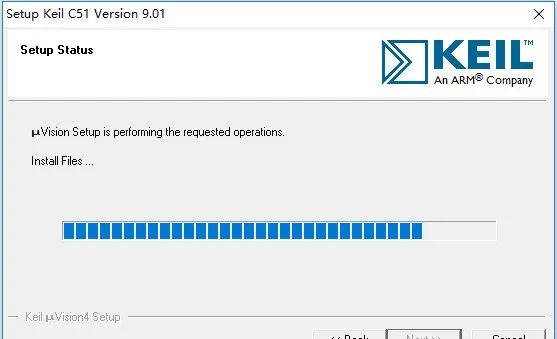
8. The software is being installed.
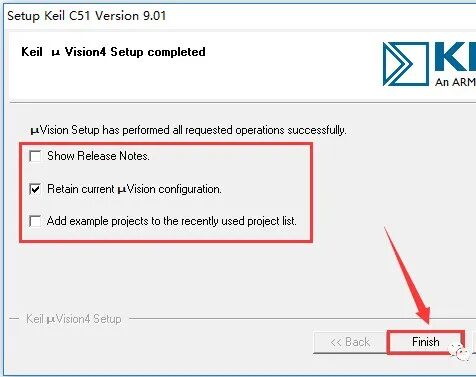
9. Uncheck 【Show Release Notes】 and 【Add example…】, then click 【Finish】.
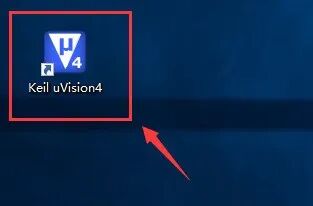
10. Double-click to open 【Keil uVision4】 on the desktop.
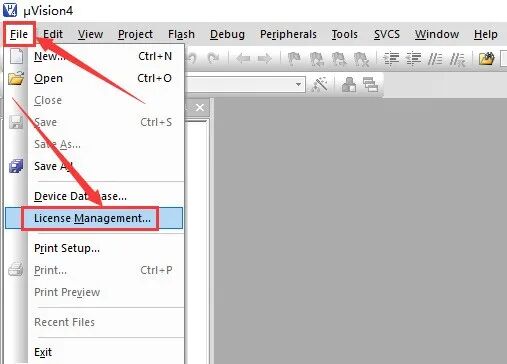
11. Click on 【File】 menu and then 【License Management】.
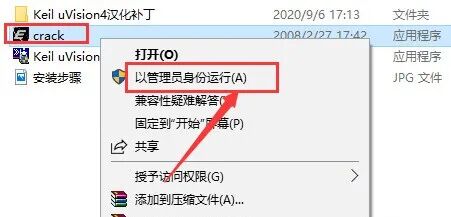
12. Open the previously extracted 【Keil uVision4 C51v901】 folder, select the 【crack】 executable file, right-click and select 【Run as administrator】.
Note: If the folder does not contain the 【crack】 file, please close all antivirus software (including McAfee that comes with some computers), and for Windows 10/11, also disable “Windows Security Center Real-time Protection” before re-extracting.
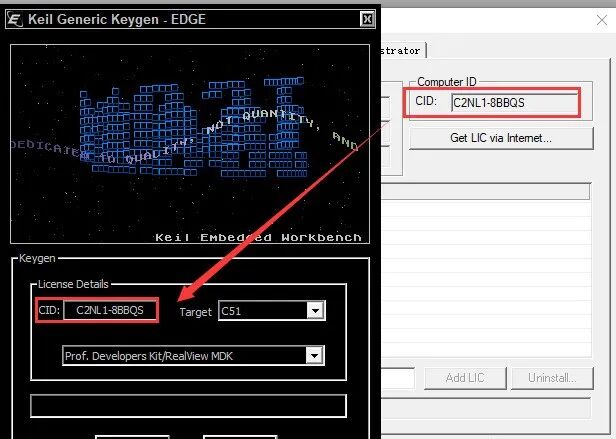
13. Use the shortcut “Ctrl+C” to copy the 【CID】 from the software license manager, and paste it into the 【CID】 box of the key generator using “Ctrl+V”.
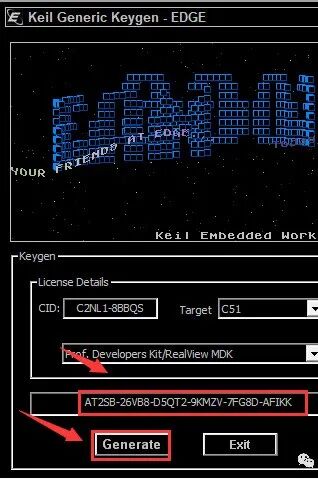
14. Click 【Generate】, and use the shortcut “Ctrl+C” to copy the generated 【Activation Code】 from the box above.
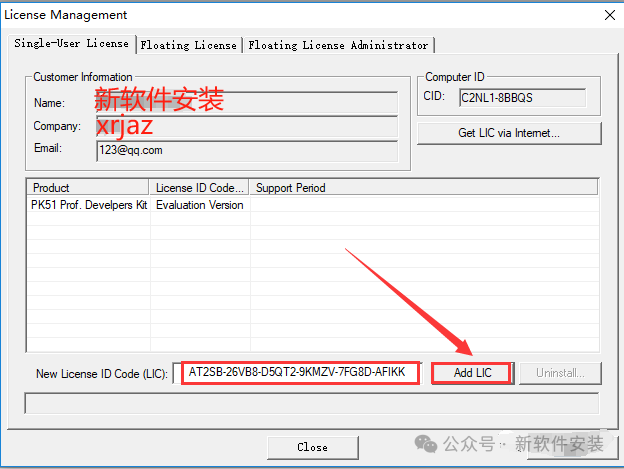
15. Paste the activation code into the 【New License ID Code】 box using “Ctrl+V”, then click 【Add LIC】. (If activation fails, close the software and reopen it as administrator)
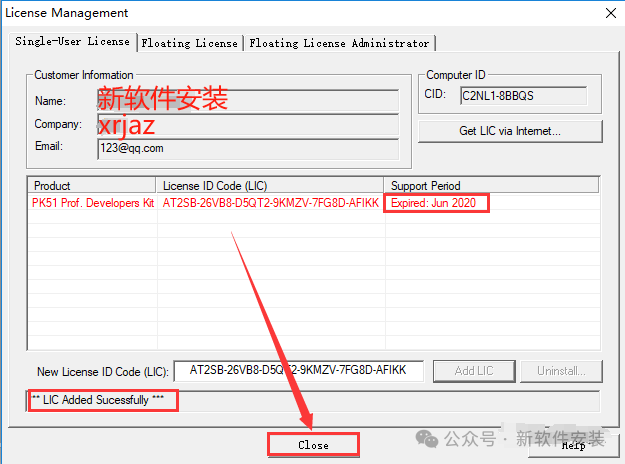
16. Activation successful. If you find the activation time short, you can change to another activation code, then click 【Close】.
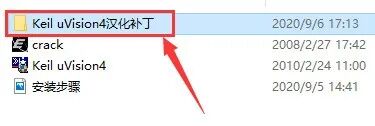
17. Double-click to open the previously extracted 【Keil uVision4 C51 version】 folder and then the 【Keil uVision4 Language Pack】 folder.
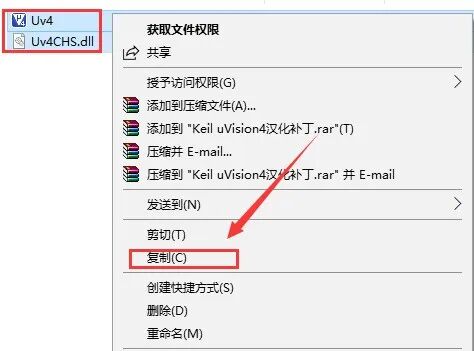
18. Select all files, right-click and select 【Copy】.
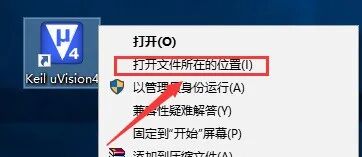
19. Right-click on the 【Keil uVision4】 on the desktop and select 【Open file location】.
20. Right-click in the blank space and select 【Paste】.
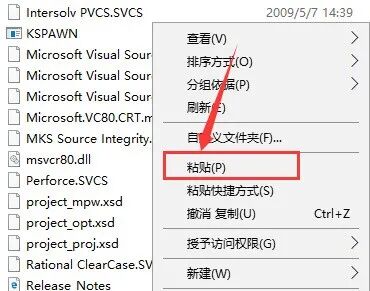
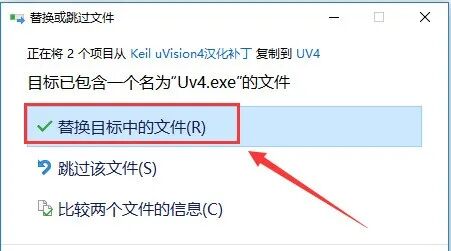
21. Click 【Replace the files in the destination】, and the language pack installation is complete.
22. Double-click to open 【Keil uVision5】 on the desktop.
23. Installation complete, the software interface is as follows.
