At the beginning of the year, Alibaba Cloud released a related announcement that MongoDB versions 3.0 and 3.2 have entered the mandatory EOFS phase.For those in the cloud, who hasn’t upgraded yet???
Alibaba Cloud’s announcement regarding MongoDB
[Notice] MongoDB 3.0 and 3.2 version instances are scheduled to terminate service (EOS) on December 31.
MongoDB 6.0 has also reached its End Of Life Date. Why not use V8.0? Simply because we upgraded directly from the 3.x version, and V8.0 has been released for nearly a year, which is just to reduce risk.
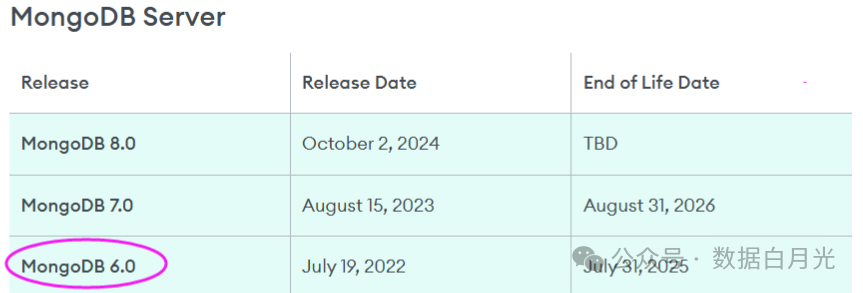
Environment Description:
| Name | Operating System | Configuration | Data Disk | IP | Description |
|---|---|---|---|---|---|
| Server A | CentOS 7.9 | 4H16G | 100G | 192.168.10.11 | Used for installing MongoDB version 6.0 |
| Server B | CentOS 6.5 | 4H16G | 100G | 192.168.10.12 | Version 3.2, data needs to be migrated to Server A |
1. Environment Preparation
1.1 Permanently Disable SELinux (Requires Server Restart)
PS: If not disabled, starting from MongoDB version 5.0, related configurations need to be made, refer to the official documentation for details.
sed -i s#SELINUX=enforcing#SELINUX=disabled# /etc/selinux/config
1.2 Enable Firewall
Check if the firewall is enabled and open the relevant ports.

firewall-cmd --remove-port=27017/tcp --permanent
firewall-cmd --reload
1.3 Optimize System Resources
cat /etc/security/limits.conf
# New Configuration
mongod soft nofile 64000
mongod hard nofile 64000
mongod soft nproc 32000
mongod hard nproc 32000
1.4 Disable Transparent Huge Pages (Recommended: Permanently Disable via rc.local)
1.4.1 Edit /etc/rc.d/rc.local file and add configuration
iftest -f /sys/kernel/mm/transparent_hugepage/enabled; then
echo never > /sys/kernel/mm/transparent_hugepage/enabled
fi
iftest -f /sys/kernel/mm/transparent_hugepage/defrag; then
echo never > /sys/kernel/mm/transparent_hugepage/defrag
fi
1.4.2 Grant Execute Permissions:
chmod +x /etc/rc.d/rc.local
1.4.3 Take Effect Immediately:
/etc/rc.d/rc.local
1.4.4 Verify Settings
cat /sys/kernel/mm/transparent_hugepage/enabled
cat /sys/kernel/mm/transparent_hugepage/defrag
Should display similar output:
always madvise [never]
1.5 Install Dependencies
yum install -y libcurl openssl wget
1.6 Create Repository File (6.0)
cat /etc/yum.repos.d/mongodb-org-6.0.repo
[mongodb-org-6.0]
name=MongoDB Repository
baseurl=https://repo.mongodb.org/yum/redhat/$releasever/mongodb-org/6.0/x86_64/
gpgcheck=1
enabled=1
gpgkey=https://www.mongodb.org/static/pgp/server-6.0.asc
2. Install the Latest Stable Version of MongoDB 6.0
PS: The major version needs to be specified in section 1.6 above.
2.1 Execute Installation Command (Default creates owner and group name as mongod)
# Run the following command to install the complete MongoDB 6.0 suite:
sudo yum install -y mongodb-org
2.2 Check if Installation was Successful:
mongod --version

db version v6.0.25
Build Info: {
"version": "6.0.25",
"gitVersion": "919f50c37ef9f544a27e7c6e2d5e8e0093bc4902",
"openSSLVersion": "OpenSSL 1.0.1e-fips 11 Feb 2013",
"modules": [],
"allocator": "tcmalloc",
"environment": {
"distmod": "rhel70",
"distarch": "x86_64",
"target_arch": "x86_64"
    }
}
3. Configure and Manage the mongod Service
3.1 Create Dedicated Data and Log Directories, and Grant Access to mongod User (Not Using Default)
PS: By default, /var/lib/mongo (data directory), /var/log/mongodb (log directory) are used.
mkdir -p /data/mongodb
mkdir -p /data/mongodb/{mbdata,mblog}
chown -R mongod:mongod /data/mongodb
PS: Setting the correct permissions ensures that the MongoDB service can access it, and the system starts using the mongod user by default.
3.2 Start MongoDB Service
Use systemctl to start and set it to start on boot:
sudo systemctl start mongod
sudo systemctl enable mongod
sudo systemctl status mongod
Check status: The startup status should show active (running).
3.3 View Processes
# ps -ef|grep mongo
mongod   13646     1  0 16:33 ?        00:00:07 /usr/bin/mongod -f /etc/mongod.conf
3.4 Basic Configuration (Optional)
Edit the configuration file /etc/mongod.conf
# Log Settings【PS: Must be a file, if it is a directory, it will report an error on startup】
systemLog:
destination:file
logAppend:true
path:/data/mongodb/mglog/mongod.log

# Where and how to store data (data directory and memory settings)
storage:
dbPath:/data/mongodb/mgdata
journal:
enabled:true
wiredTiger:
engineConfig:
cacheSizeGB:3# Set to 50-60% of physical memory

# how the process runs
processManagement:
timeZoneInfo:/usr/share/zoneinfo

# network interfaces (allow remote access)
net:
port:27017
bindIp:127.0.0.1,192.168.10.11# Enter 0.0.0.0,:: to bind to all IPv4 and IPv6 addresses or, alternatively, use the net.bindIpAll setting.
- Restart the mongod service to make the configuration take effect.
sudo systemctl restart mongod
4. Login Authentication
4.1 Login Client
mongosh --port 27017 -u admin -p "Virdb_123"
4.2 Enable Login Authentication Verification
use admin
# Create admin user
db.createUser({
  user: "admin",
  pwd: passwordPrompt(), // Interactive password input
  roles: ["root"]
})

# Enter password
***********
After setting, modify the configuration file /etc/mongod.conf to add the configuration
# Enable authentication (add after setting account and password)
security:
  authorization: enabled
PS: After modifying the configuration file, the mongod service needs to be restarted.
4.3 Change Password (if needed)
db.changeUserPassword("admin", "Virdb_123")
# The return message is as follows (PS: In version 3.2, there is no prompt for successful execution)
{ ok: 1 }
4.4 Set Passwordless Login
cat ~/.bash_profile
# Add
export MONGOPD="Virdb_123"
alias mosh='mongosh --port 27017 -u admin -p $MONGOPD'

# Take effect immediately
source  ~/.bash_profile
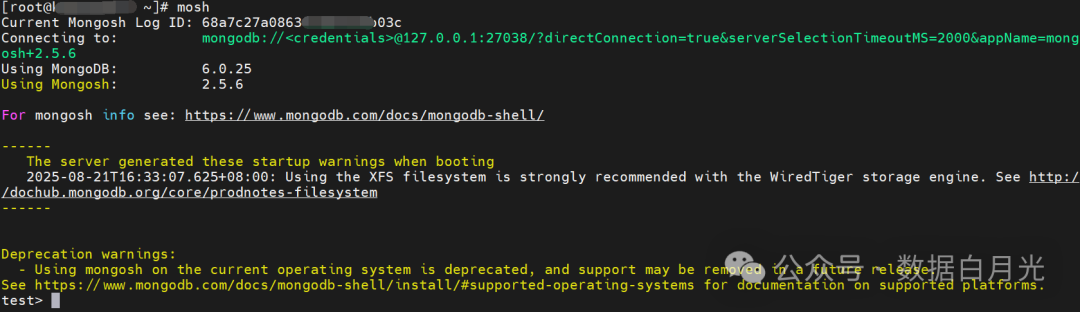
5. Data Migration Compatibility Testing (Single Collection Processing)
PS: Due to crossing multiple versions, use JSON export format.
5.1 Export JSON Format Data from MongoDB V3.2 (Single Collection Processing)
Create a directory for backup data.
mkdir -p /home/dmp/json
Test exporting data from a single collection.
mongoexport --port 27017 --db virdb --collection collection_2 --out /home/dmp/json/collection_2.json
Output:
diagnosis.json
2025-08-21T10:17:52.011+0800    connected to: 192.168.10.12:27017
2025-08-21T10:17:52.050+0800    exported 430 records
5.2 Import Data into MongoDB V6.0 (Single Collection Processing)
Copy the file to the MongoDB V6.0 server, path as follows/data/dmp/json/collection_2.json
Execute the import for a single collection.
mongoimport --port 27017 -u admin -p "Virdb_123" --authenticationDatabase admin --db virdb --collection collection_2 --file /data/dmp/json/collection_2.json
Output:
2025-08-21T10:18:51.171+0800    connected to: mongodb://localhost:27017/
2025-08-21T10:18:51.197+0800    430 document(s) imported successfully. 0 document(s) failed to import.
5.3 Data Validation
Check the collection status, compare collection size, document count, and check for any garbled characters in both Chinese and English.
# Check status
db.collection_2.stats()

# View collection data
db.collection_2.find().limit(50)
Partial status output:
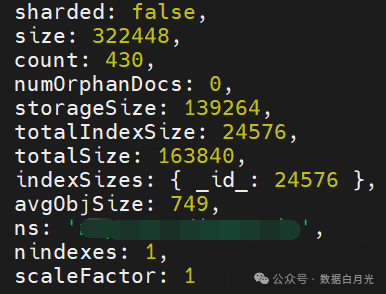
6. Data Migration (Batch Processing)
6.1 Export JSON Format Data from MongoDB V3.2 (Time Consuming Depends on Data Volume, Current Test: 1.5G Data Takes 6 Minutes)
Edit the script exp_mongojson.sh
#!/bin/bash

# Get all collection names from the test database
collections=$(mongo  --port 27017 virdb --eval"db.getCollectionNames()" --quiet | sed 's/\[//g' | sed 's/\]//g' | sed 's/,/ /g')

# Export for each collection
for collection in$collections; do
echo"Exporting $collection..."
    mongoexport --host 192.168.10.12 --port 27017 --db virdb --collection $collection --out /home/dmp/json/$collection.json
done
Grant execute permissions.
chmod a+x exp_mongojson.sh
Execute the scriptnohup sh exp_mongojson.sh &
6.2 Import Data into MongoDB V6.0
Delete the imported test index [Caution: Check the database being executed]
# Login
mosh
# Delete test index
db.virdb.drop()
db.collection_2.drop()
Batch import script
cat imp_mongo.sh
#!/bin/bash

for i in `ls /data/dmp/json/json` ;do
echo"Processing collection $i----"
rname=`echo"$i" | awk -F '.''{print $1}'`
mongoimport --port 27017 -u admin -p "Virdb_123" --authenticationDatabase admin --db virdb --collection $rname --file /data/dmp/json/$rname.json
done
Execute the script to import data
nohup sh imp_mongo.sh &
6.3 Data Validation (Sample Collection Check as per Section 5.3, and Compare Database Collection Count and Size)
Log in to check if the collection format and database size are consistent.
use virdb
show dbs
show tables
7. Index Migration: Rebuilding Indexes in MongoDB V6.0
7.1 Export Indexes from MongoDB V3.2
Create a new js file and write the processing logic.
// exp_mongo_index.js
var output = [];
var collections = db.getCollectionNames().filter(function(coll) {
return coll !== 'system.indexes' && coll !== 'system.profile'; // Exclude system collections
});

collections.forEach(function(coll) {
var indexes = db.getCollection(coll).getIndexes();
    output.push({
collection: coll,
indexes: indexes
    });
});

printjson(output);
Execute export.
mongo --port 27017 virdb --quiet /home/script/exp_mongo_index.js > /home/script/expport_indexes.json
The index format exported from MongoDB V3.2 is as follows (excerpt):cat expport_indexes.json
[
        {
"collection" : "collection_1",
"indexes" : [
                        {
"v" : 1,
"key" : {
"_id" : 1
                                },
"name" : "_id_",
"ns" : "virdb.collection_1"
                        },
                        {
"v" : 1,
"key" : {
"cname" : 1
                                },
"name" : "cname_1",
"ns" : "virdb.collection_1",
"background" : true
                        }
                ]
        }
]
7.2 Rebuild Corresponding Indexes in MongoDB V6.0 (Batch)
Create a new import_indexes.js file and write the processing logic.
// import_indexes.js
const fs = require('fs');

try {
// 1. Read and parse the index file
const data = JSON.parse(fs.readFileSync('expport_indexes.json', 'utf8'));

// 2. Validate data format
if (!Array.isArray(data) || data.length === 0) {
throw new Error("Index data format error: should be a non-empty array");
}

// 3. Process indexes for each collection
    data.forEach(collectionData => {
const collectionName = collectionData.collection;
const indexes = collectionData.indexes;

// 4. Create each index
        indexes.forEach((index, i) => {
// Skip the default _id index
if (index.name === "_id_") return;

// Prepare options
const options = {
name: index.name,
background: index.background || true, // Default to create in the background
                ...index // Include all other options
            };

// Remove fields already included in parameters
delete options.key;
delete options.v;
delete options.ns;

            print(`Creating index ${index.name} on collection ${collectionName}`);
db.getCollection(collectionName).createIndex(index.key, options);
        });
    });

    print("Index import completed");
} catch (e) {
    print(`Import failed: ${e.message}`);
// Log detailed errors to log
    fs.writeFileSync('import_error.log', e.stack);
}
- Execute command to import indexes
mongosh --port 27017 -u admin -p $MONGOPD --authenticationDatabase admin hup --quiet import_indexes.js

- Index Verification
db.collection_1.getIndexes()
8. Troubleshooting
8.1 Login Error: No Permission
{"t":{"$date":"2025-08-21T09:52:17.427+08:00"},"s":"I", "c":"ACCESS", "id":20249, "ctx":"conn66","msg":"Authentication failed","attr":{"mechanism":"SCRAM-SHA-256","speculative":true,"principalName":"admin","authenticationDatabase":"virdb","remote":"127.0.0.1:50340","extraInfo":{},"error":"UserNotFound: Could not find user \"admin\" for db \"virdb\""}}
**Solution:** Connect to the authenticated admin database, not the virdb database.
8.2 Warnings After Login Startup
The server generated these startup warnings when booting
2025-08-20T17:49:27.868+08:00: Using the XFS filesystem is strongly recommended with the WiredTiger storage engine. See http://dochub.mongodb.org/core/prodnotes-filesystem
2025-08-20T17:49:28.812+08:00: /sys/kernel/mm/transparent_hugepage/enabled is 'always'. We suggest setting it to 'never' in this binary version
2025-08-20T17:49:28.812+08:00: /sys/kernel/mm/transparent_hugepage/defrag is 'always'. We suggest setting it to 'never' in this binary version
2025-08-20T17:49:28.812+08:00: vm.max_map_count is too low
Solution: Disable transparent huge pages, optimize parameters, refer to sections 1.3 and 1.4 above.
8.3 mongoexport Export Error
mongoexport --host 192.168.10.12 --port 27017 --db test --out /home/dmp/test
Prompt 2025-08-21T10:09:58.710+0800    error validating settings: must specify a collection
2025-08-21T10:09:58.710+0800    try 'mongoexport --help' for more information
Solution: This is because it must know the collection, so subsequent scripts were used to process all collections under virdb.
8.4 Client Connection Error
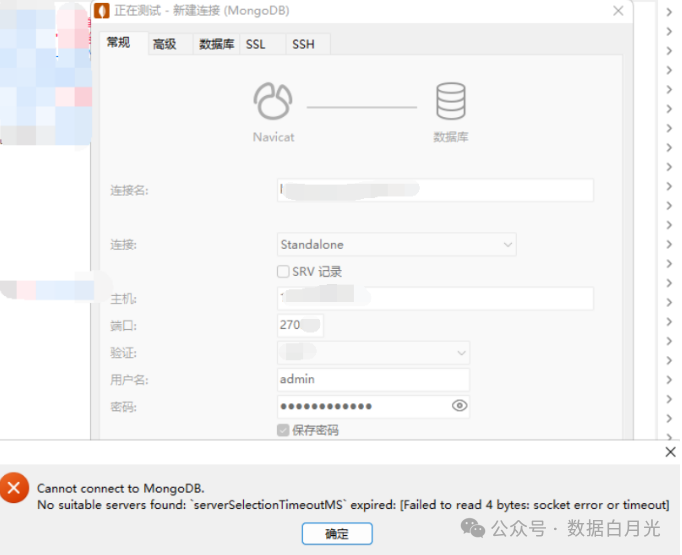
Cannot connect to MongoDB. No suitable servers found: `serverSelectionTimeoutMS` expired: [failed to read 4 bytes: socket error or timeout
**Solution:** The firewall has not opened the port, refer to section 1.3 above.
8.5 Test Using mongodump/mongorestore Backup V3.2, Restore to 6.0 Error
Export and import commands are as follows:
# V3.2 Execute export
mongodump --host 192.168.10.11 --port 27017  --db virdb --out /home/dmp --gzip

# V6.0 Execute import
mongorestore --port 27017 -u admin -p $MONGOPD --authenticationDatabase admin virdb /data/dmp/virdb --gzip
Error log as follows:
# Partial excerpt
2025-08-21T09:54:03.405+0800    don't know what to do with file "/data/dmp/virdb/collection_1.js.bson.gz", skipping...
2025-08-21T09:54:03.405+0800    don't know what to do with file "/data/dmp/virdb/collection_2.js.bson.gz", skipping...
Solution: Incompatibility caused, use mongoexport/mongoimport to export JSON file format processing, refer to the data migration section above.
9. Uninstalling MongoDB 【Caution! Caution! Caution!】
9.1 Stop MongoDB
Stop the mongod process by issuing the following command:
sudo service mongod stop
9.2. Remove Packages
Remove all MongoDB packages you previously installed:
sudo yum erase $(rpm -qa | grep mongodb-org)
9.3. Delete Data Directory
Delete MongoDB database and log files (as seen in the configuration file):
sudo rm -r /var/log/mongodb
sudo rm -r /var/lib/mongo
10. Reference Documents and Manuals:
10.1 Manual Installation Reference as follows
Official download addresshttps://www.mongodb.com/try/download/community-kubernetes-operator
Software download address:https://fastdl.mongodb.org/linux/mongodb-linux-x86_64-rhel70-6.0.25.tgz
Currently selected latest version 6.0: 6.0.25 version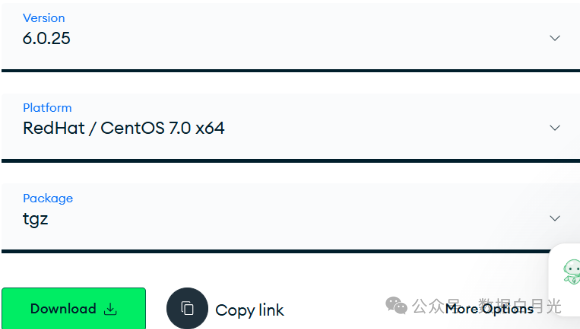
10.2 Official Documentation
https://www.mongodb.com/en/docs/v6.0/
Installation and usage of mongoshhttps://www.mongodb.com/en/docs/mongodb-shell/install/#supported-operating-systems
Specifically, installation instructions for 6.0 on CentOS:https://www.mongodb.com/en/docs/v6.0/tutorial/install-mongodb-on-red-hat/
Database Tools (including mongoimport used above)https://www.mongodb.com/en/docs/database-tools/