Join our operations and maintenance community group:
WeChat Group 2.0 | No idle chat, only practical discussions and growth, operations and maintenance professionals are welcome to join.
Today, I am sharing a super cool script that automatically displays the system information you usually care about when you log into a Linux server, making it clear at a glance.
More importantly: The script is ready to use with just a copy, and you can customize it as needed.
1. Effect Demonstration
After logging into the server, it automatically displays
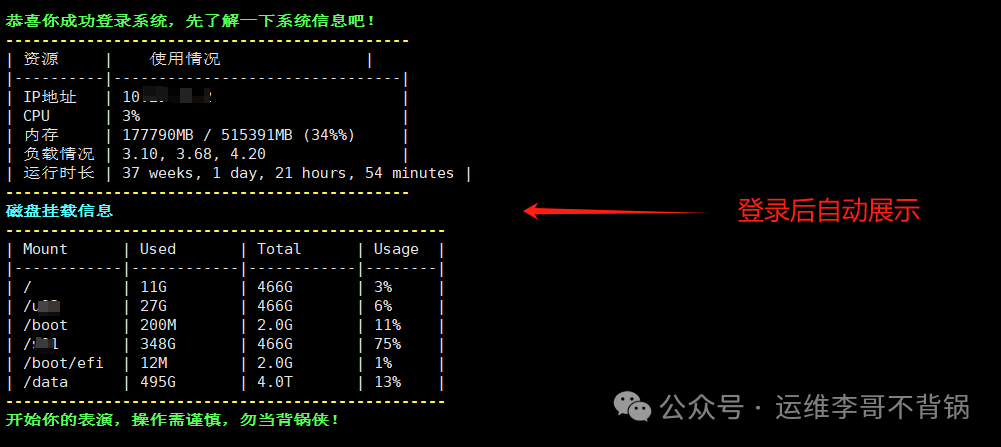
Doesn’t it give you a strong sense of control? The system’s health status is clear at a glance, and you no longer need to flip through commands to check resources!
2. Implementation Script
Writing the script:
vi /etc/profile.d/sysinfo.sh
Script content:
#!/bin/bash

# Colors
GREEN="\033[1;32m"
YELLOW="\033[1;33m"
CYAN="\033[1;36m"
RESET="\033[0m"

# Get basic information
HOSTNAME=$(hostname)
UPTIME=$(uptime -p | sed 's/up //')
LOADAVG=$(uptime | awk -F'load average:''{print $2}' | sed 's/^ //')

# Memory
read MEM_TOTAL MEM_USED <<<$(free -m | awk '/Mem:/ {print $2, $3}')
MEM_PCT=$((MEM_USED * 100 / MEM_TOTAL))

# IP
IP_ADDR=$(hostname -I | awk '{print $1}')

# CPU usage (top method)
CPU_IDLE=$(top -bn2 | grep "Cpu(s)" | tail -n1 | awk -F',' '{print $4}' | grep -o '[0-9.]*')
CPU_USAGE=$(awk "BEGIN {printf "%.0f", 100 - $CPU_IDLE}")

# Output system information
echo -e "\n${GREEN}Congratulations on successfully logging into the system, let's take a look at the system information!${RESET}"
echo -e "${YELLOW}---------------------------------------------${RESET}"
#echo -e "${CYAN}System information is as follows:${RESET}"
#echo -e "${YELLOW}---------------------------------------------${RESET}"

printf"| %-8s | %-30s |\n" "Resource" "Usage"
printf"|----------|--------------------------------|\n"
printf"| %-8s | %-30s |\n" "IP Address" "$IP_ADDR"
printf"| %-8s | %-30s |\n" "CPU" "$CPU_USAGE%"
printf"| %-8s | %-30s |\n" "Memory" "${MEM_USED}MB / ${MEM_TOTAL}MB (${MEM_PCT}%%)"
printf"| %-8s | %-30s |\n" "Load" "$LOADAVG"
printf"| %-8s | %-30s |\n" "Uptime" "$UPTIME"

echo -e "${YELLOW}---------------------------------------------${RESET}"
echo -e "${CYAN}Disk Mount Information${RESET}"
echo -e "${YELLOW}-------------------------------------------------${RESET}"

# Print disk usage (excluding tmpfs and devtmpfs)
printf"| %-10s | %-10s | %-10s | %-6s |\n" "Mount" "Used" "Total" "Usage"
printf"|------------|------------|------------|--------|\n"
df -h -x tmpfs -x devtmpfs | awk 'NR>1 {
    printf "| %-10s | %-10s | %-10s | %-6s |\n", $6, $3, $2, $5
}'

echo -e "${YELLOW}-------------------------------------------------${RESET}"
echo -e "${GREEN}Start your performance, operate with caution, do not be the scapegoat!${RESET}\n"
3. Running the Script
Add execution permissions to the script to run it.
chmod +x /etc/profile.d/sysinfo.sh
After completing the above steps, this beautiful resource list will automatically display every time you log in via SSH, TTY, or Shell.
4. Notes
The script should be placed in a directory that the system automatically executes scripts. Recommended paths:
| Target | Recommended Path |
|---|---|
| Effective for all users | <span>/etc/profile.d/sysinfo.sh</span> |
| Effective for the current user only | <span>~/.bash_profile</span> or <span>~/.bashrc</span> |
| Non-bash users (e.g., zsh) | <span>~/.zshrc</span> or <span>/etc/zsh/zshrc</span> |
| Clear script style, can be centrally managed | <span>/etc/profile.d/</span> directory |
Other points to note:
-
<span>/etc/profile.d/xxx.sh</span>scripts must be executable and end with<span>.sh</span>. -
<span>~/.bashrc</span>and<span>~/.bash_profile</span>execute the current user’s scripts, it is recommended not to write logic that affects all users.
The above script not only displays basic system information but can also show the deployment of applications on this system as needed, such as application deployment paths, application ports, etc. This way, newcomers can quickly understand the application deployment situation.
Feel free to share! If there are any errors or omissions, please correct me! If you find it useful, don’t forget to like and follow~
If you have any operations and maintenance-related questions, feel free to add me for consultation: lige_linux
Recommended technical series collection:
Basic Linux Knowledge
Enterprise Basic Services
Docker Series Articles
Kubernetes Series Articles
Monitoring System Series Articles
Database Series Articles