


Software Introduction
Proteus 8.6 is primarily used for simulating microcontrollers and peripheral devices. Proteus not only has simulation capabilities like other EDA tools but also simulates microcontrollers and peripheral devices, making it the world’s only design platform that integrates circuit simulation software, PCB design software, and virtual model simulation software.
Software Download
[Software Name]:Proteus 8.6
[Software Size]:249.22MB
[Software Language]:Simplified Chinese
[Installation Environment]:Windows 7 and above
[Download Link]:Reply in the public account:Proteus
[Unlimited Speed Download]:Get a free Baidu Netdisk unlimited speed download tool.Reply in the public account: Unlimited Speed[Precautions]:Pleaseturn off the network, antivirus software, and firewall before installation, otherwise installation may fail.Reply in the public account: 1[Decompression Software]:The decompression software used by the editor is Bandizip, get the Bandizip software installation package.Reply in the public account: 2
Installation Tutorial
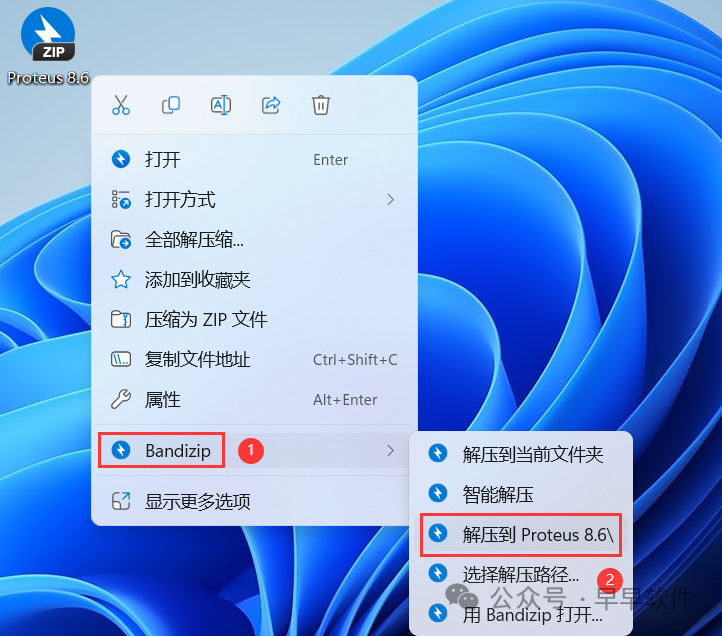
1. Download the Proteus 8.6 software installation package to your computer, right-click and select 【Extract to Proteus 8.6】
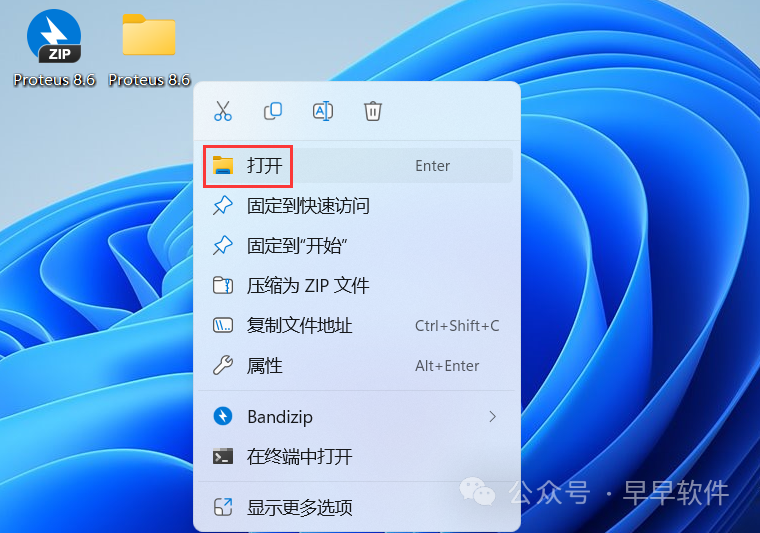
2. Right-click 【Open】 the extracted folder
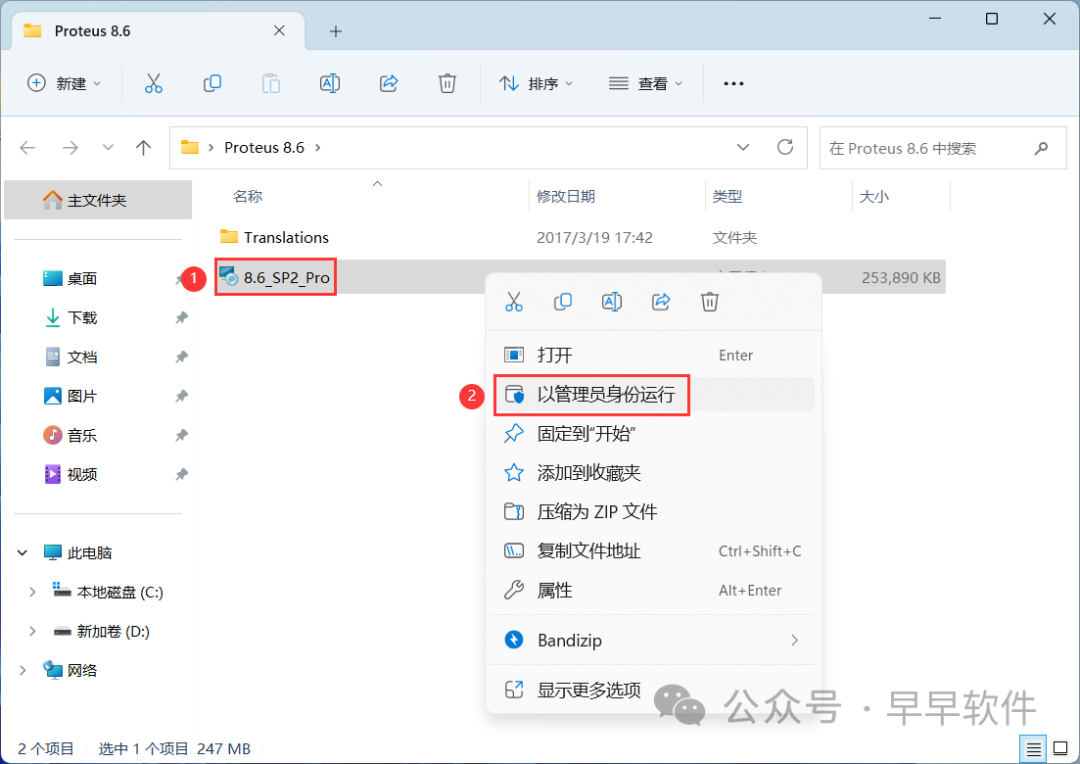
3. Find the 【8.6_SP2_Pro】 application, right-click and select 【Run as administrator】
4. The software is installed by default on the C drive, but you can customize the installation location; here the editor chooses to install on the D drive; click 【Next】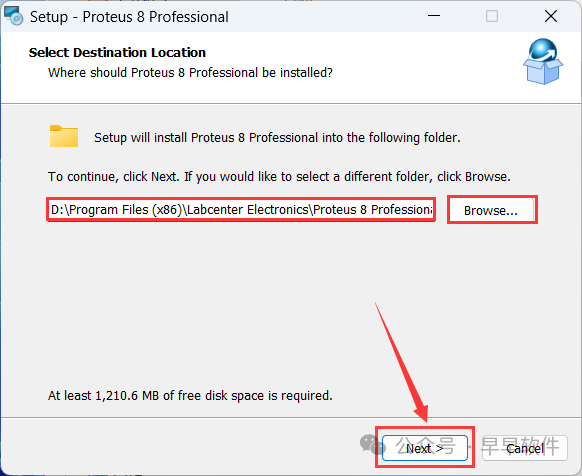
5. Click 【Next】
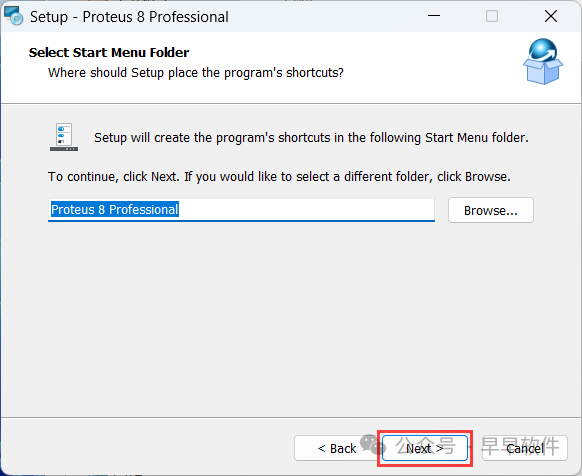
6. The software is installing, please wait a moment
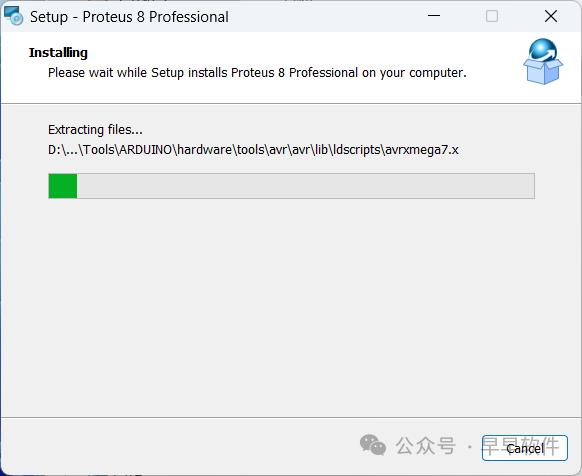
7. Click 【Finish】
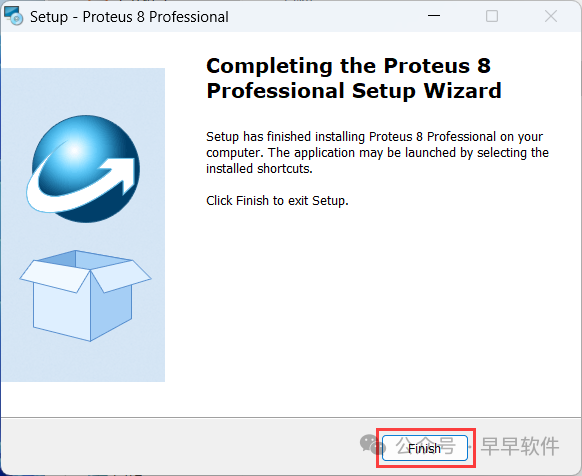
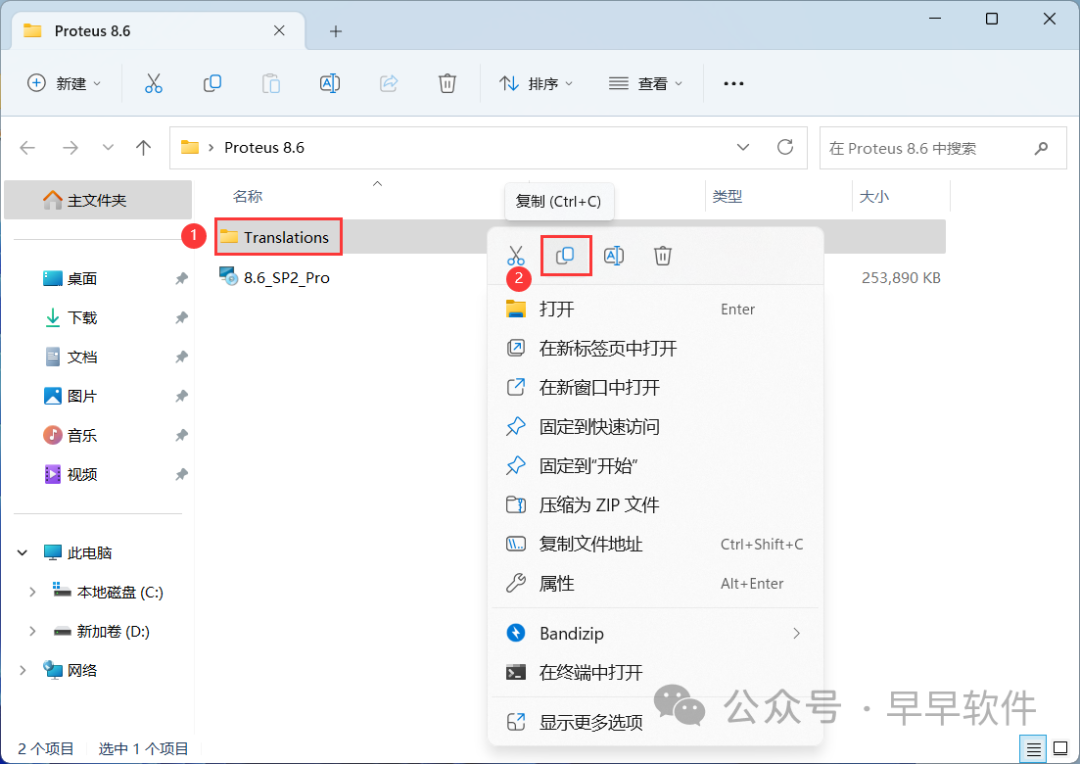
8. Go back to the Proteus 8.6 folder, find the 【Translations】 folder, right-click and click 【Copy】
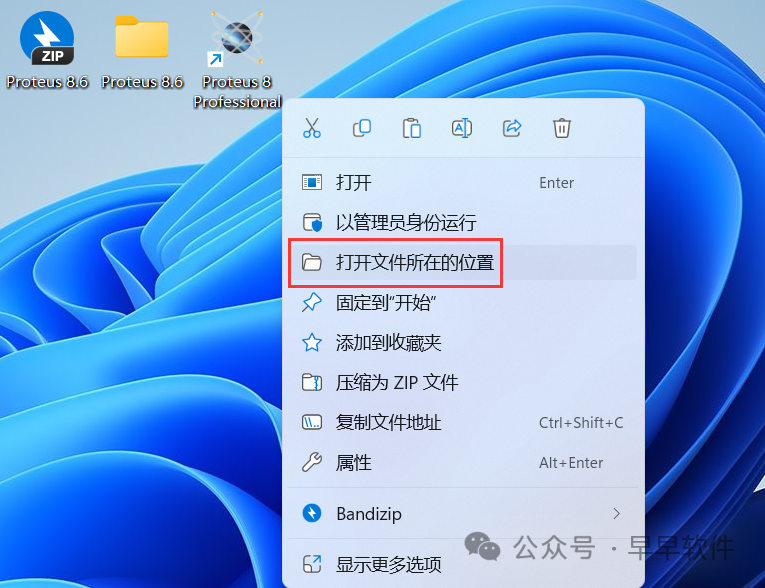
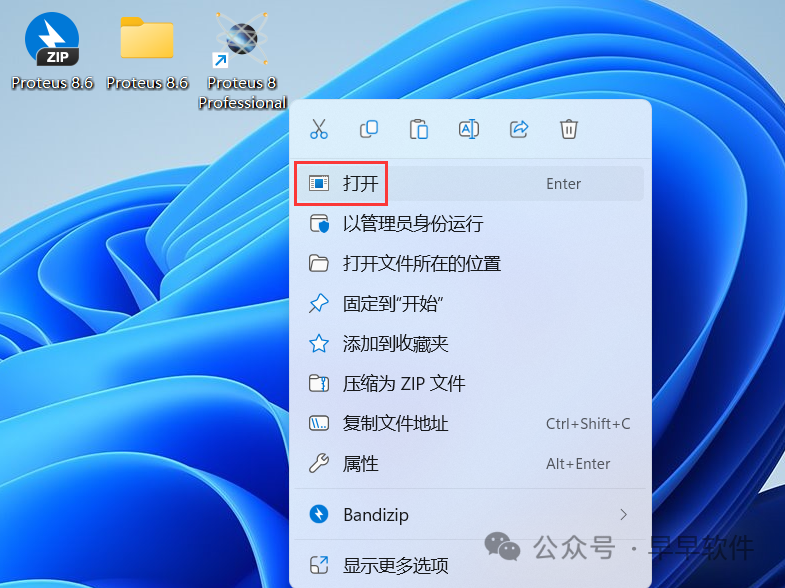
9. Go back to the desktop, right-click the 【Proteus 8 Professional software icon】 on the desktop, click 【Open file location】
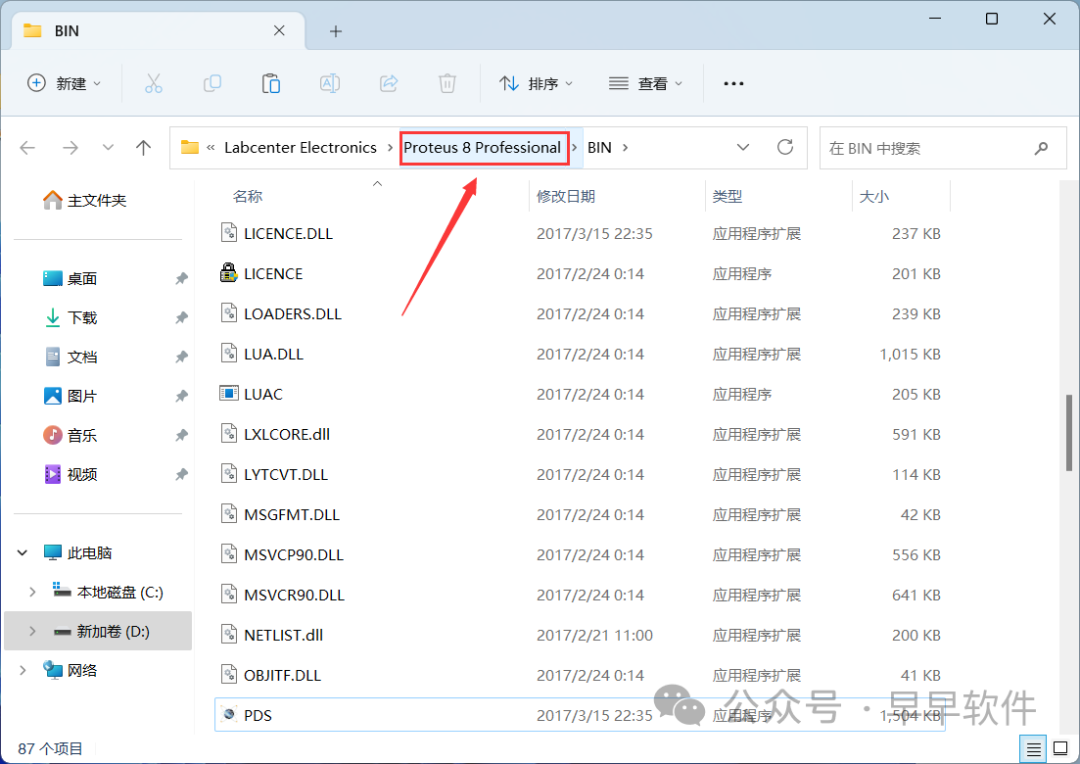
10. Click on 【Proteus 8 Professional】 in the path
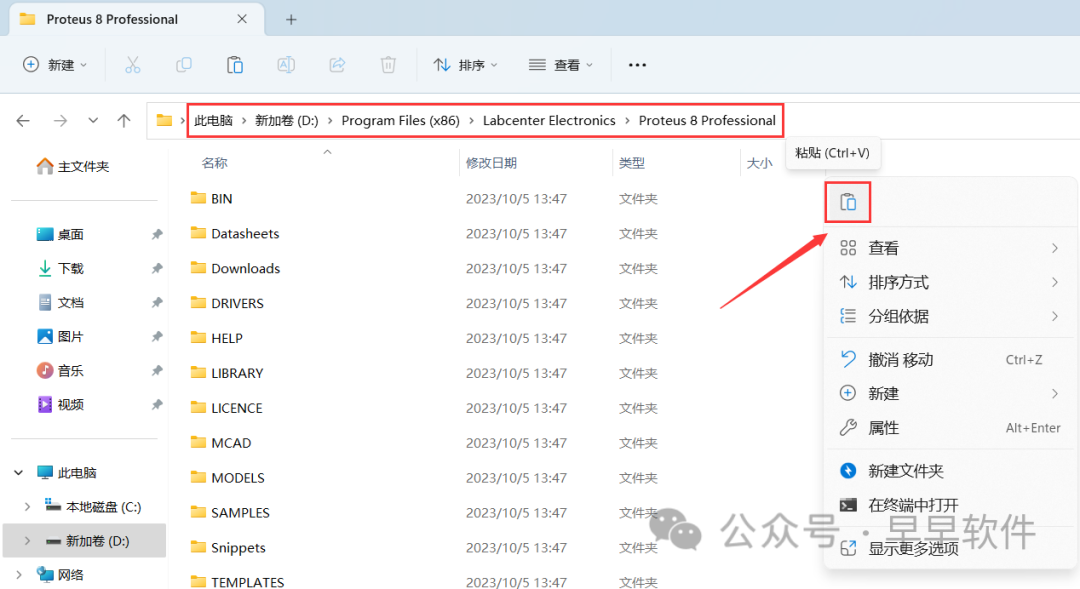
11. Right-click in the empty space of the folder, click 【Paste】
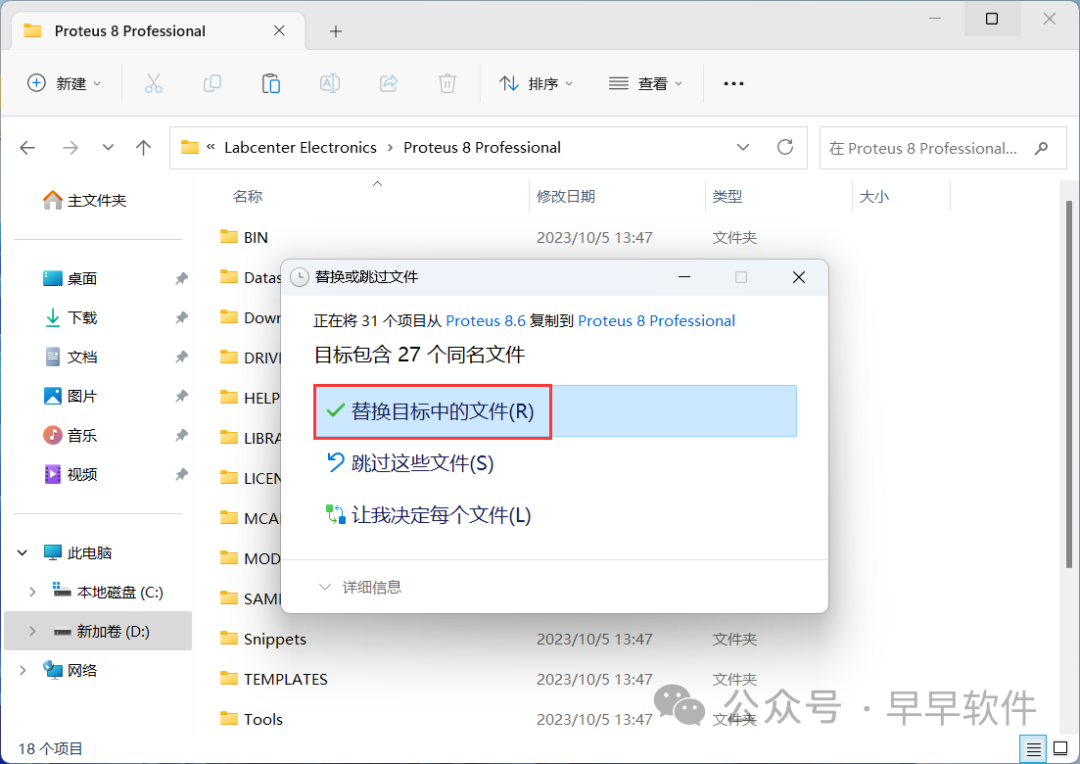
12. Click 【Replace the files in the destination】
13. Go back to the desktop, right-click the 【Proteus 8 Professional software icon】 on the desktop, click 【Open】
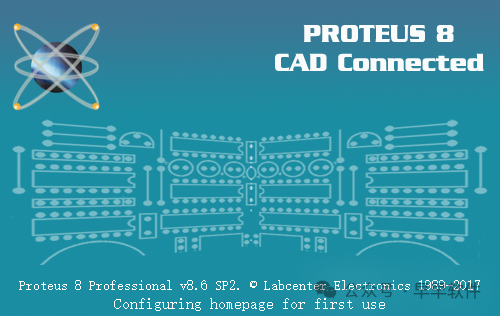
14. The software is opening, the startup interface is as follows:
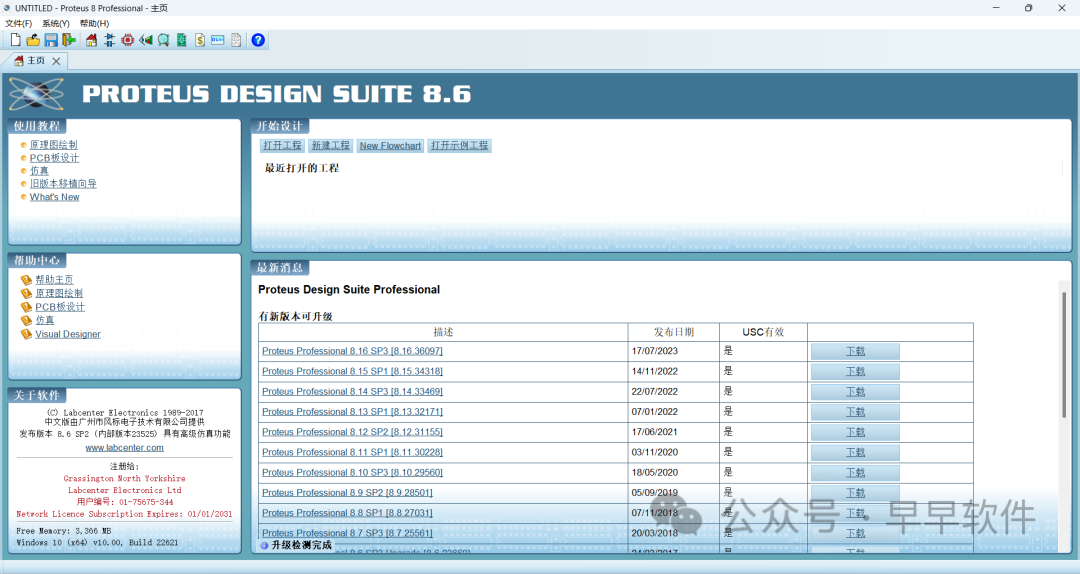
15. The software opened successfully, the running interface is as follows:
16. This is the complete process of installing Proteus 8.6 software. If it has been helpful to you, please give the editor a thumbs up!
Disclaimer: All download resources provided by this public account are collected from the internet. Users are requested to delete them within 24 hours after downloading. If you want to experience more software features, please support the original version. All content downloaded by users comes from the internet. If any content infringes your copyright or other interests, please provide relevant proof materials to contact us, and we will handle it as soon as possible.

Share

Like

View