1. After downloading and extracting, as shown in the image, locate mdk514.exe.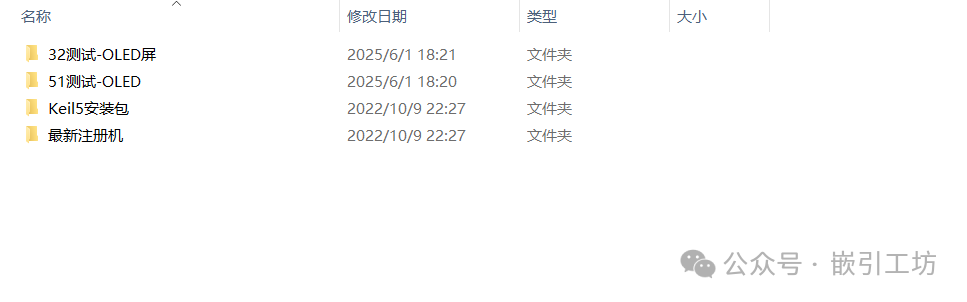
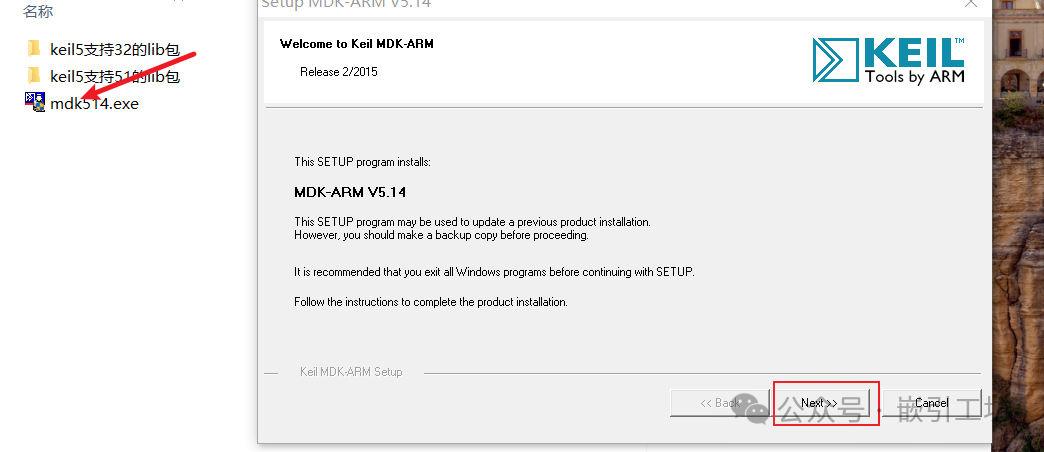
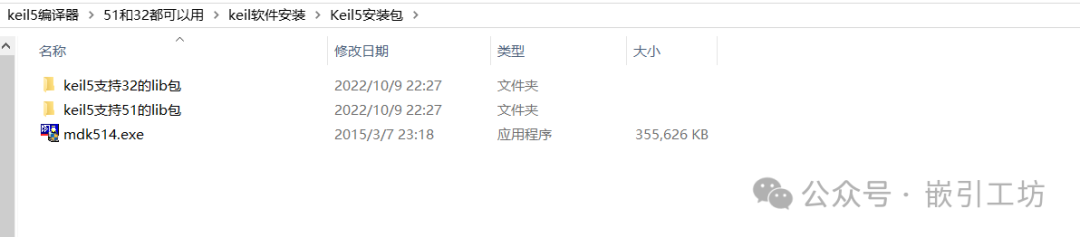 2. Open it and click NEXT, following the instructions as shown in the image.
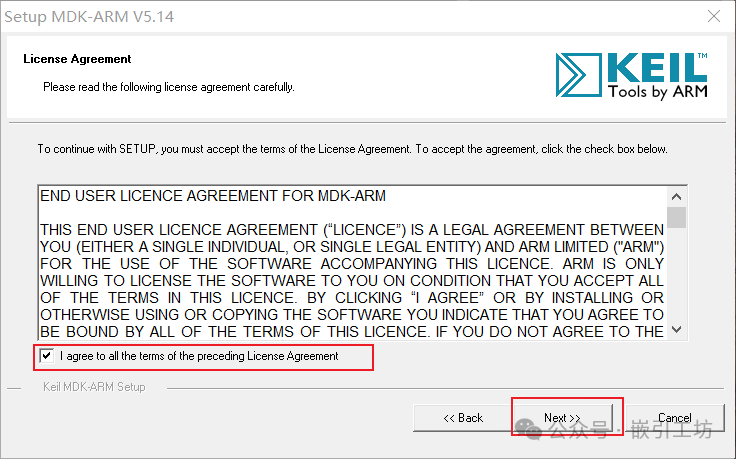
 3. Check ‘I agree’, then continue with NEXT.
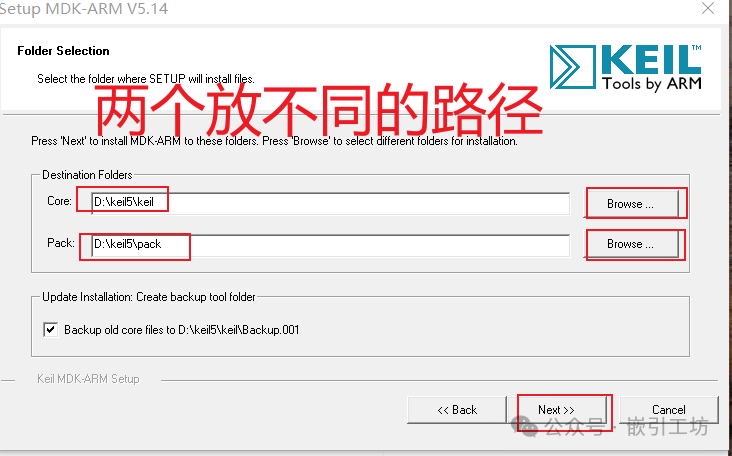
 4. Store in two different paths.
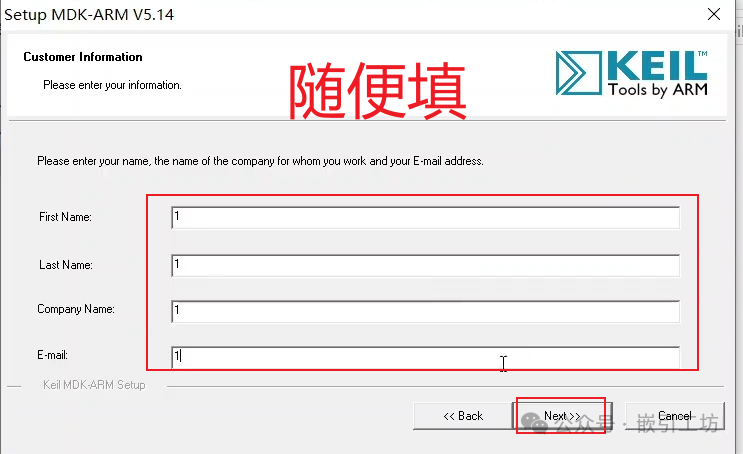
 5. Fill in the registration information arbitrarily, then continue with NEXT.
 6. Check ‘Retain’, then click Finish.
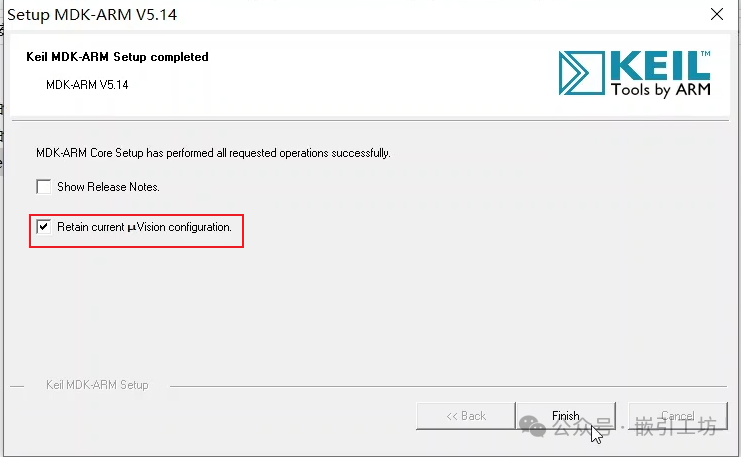 7. After installation is complete, simply close the pop-up window.
 8. Install the commonly used chip packages. Find the
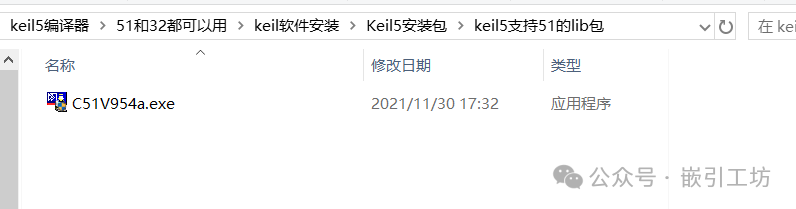
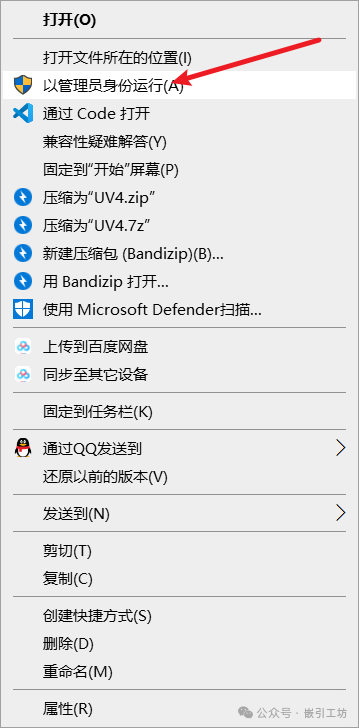
 .pack files in the path shown below, which are for 32 and 51, and run them as administrator to install by default.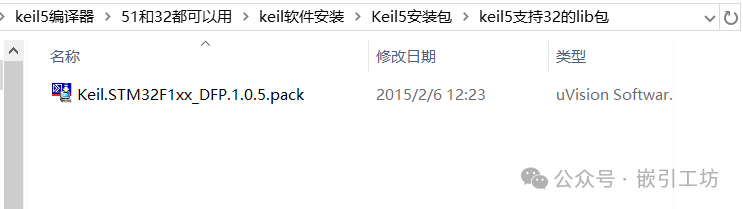
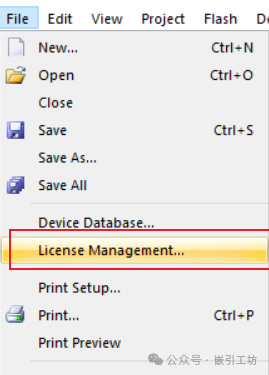
 9. Start registering and activating Keil. Find ‘File’ in the upper left corner and open ‘License Management’.
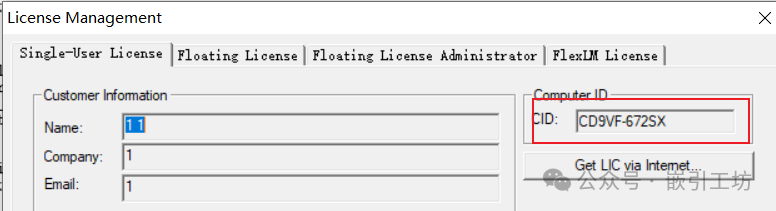
 10. Fill in the name and other information arbitrarily, then copy the CID code.
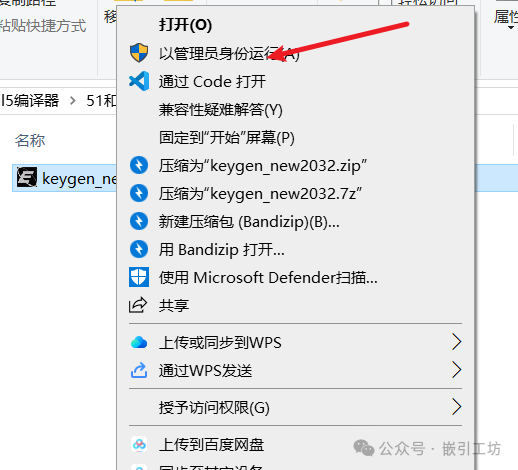
 11. Open the latest key generator and run it as administrator. Make sure to turn off the firewall in advance and lower the volume. The key generator will be very loud during use.
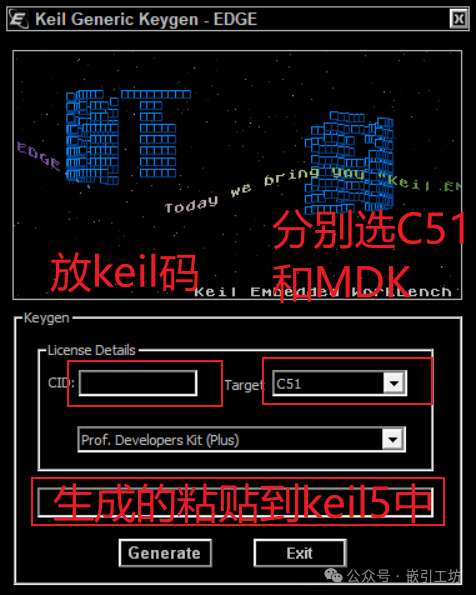
 12. Enter the CID code as shown in the image, then select 51 and 32 to generate two registration codes.
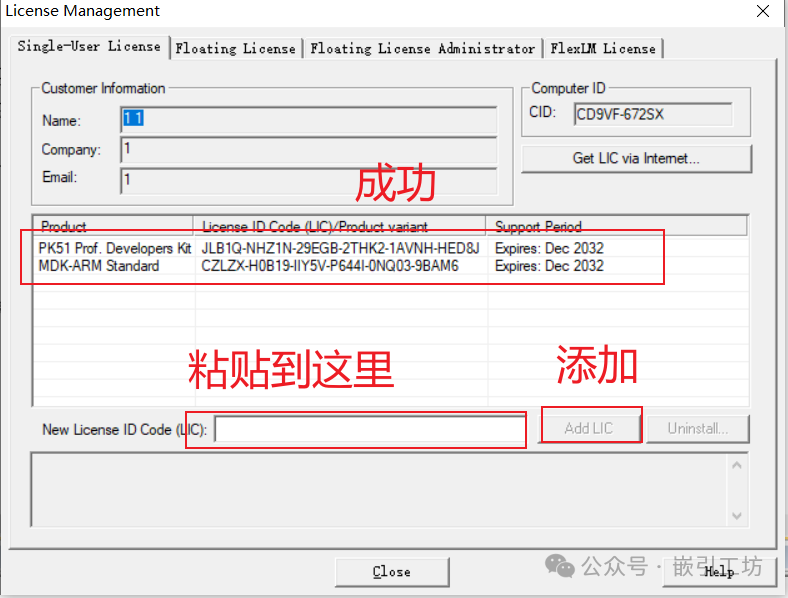
 13. Paste the two codes generated by the key generator here, then add them one by one. If it shows Dec 2032, activation is successful.
 14. Test by opening the 51 and 32 test files, find the Project in the file, and open it.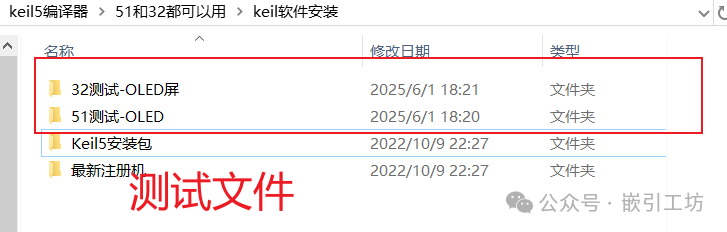
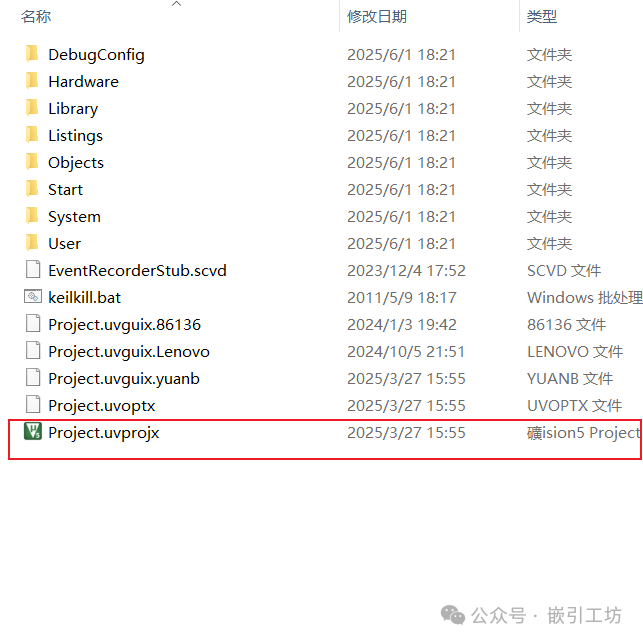 15. After opening the test file, compile it. If there are 0 errors, it is successful. Test both 51 and 32, and if there are no errors, it is successful.