Source: Beginner’s Station

1. Introduction to Shell
1.1 What is Shell
- Introduction to Shell Scripting
# Why introduce Shell
Last time I published a detailed article on Linux commands, which received a lot of recognition from friends. Some fans privately messaged me, asking for a shell programming guide. After some preparation, I spent 2 weeks organizing a blog post from basics to practical applications of shell scripting. Welcome everyone to read and provide feedback.

# What is Shell
There are many official definitions of Shell available online. If you are familiar with Linux commands, writing Shell scripts is not difficult. Shell is essentially a combination of Linux commands that achieve a specific purpose, thus becoming a Shell script. It reduces workload and improves work efficiency to a certain extent.

# Official Definition of Shell
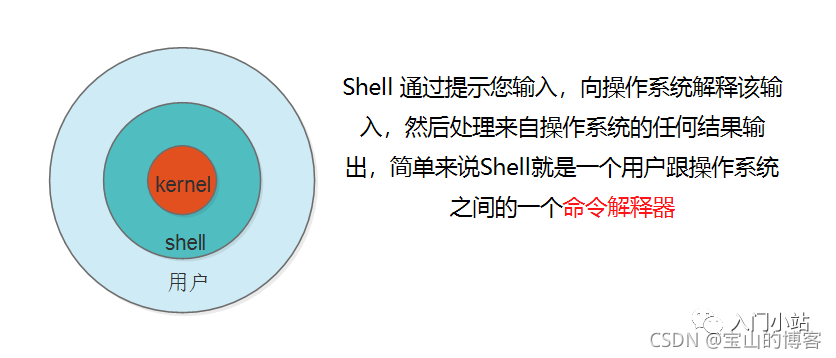
Shell prompts you for input, interprets that input to the operating system, and processes any output results from the operating system. In simple terms, Shell is a command interpreter between the user and the operating system.

# Common Shells
- Bourne Shell (/usr/bin/sh or /bin/sh)
- Bourne Again Shell (/bin/bash)
- C Shell (/usr/bin/csh)
- K Shell (/usr/bin/ksh)
- Shell for Root (/sbin/sh)
The most commonly used shell is Bash, which is the Bourne Again Shell. Bash is widely used in daily work due to its ease of use and being free, and it is the default Shell environment for most Linux operating systems.
1.2 Considerations for Shell Programming
- What to Consider in Shell Programming
- Shell Naming: Shell script names are generally in English, either uppercase or lowercase, and should end with a .sh suffix.
- Special symbols and spaces cannot be used.
- Names should be descriptive enough to indicate their functionality at a glance.
- The first line of Shell programming must start with #!/bin/bash.
- Shell script variables cannot start with numbers or special symbols; underscores (_) can be used, but dashes (-) cannot.
1.3 Your First Shell Script: Hello World
- Creating a Great Programming Project — Hello World
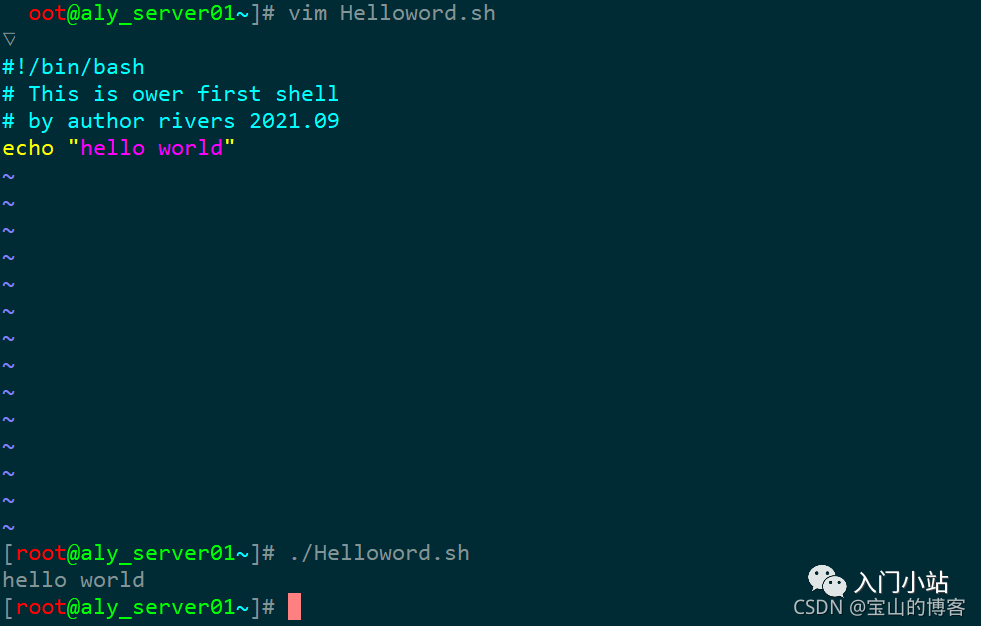
# Create a Helloword.sh file
[root@aly_server01~]# touch Helloword.sh

# Edit the Helloword.sh file
[root@aly_server01~]# vim Helloword.sh
[root@aly_server01~]# cat Helloword.sh
#!/bin/bash
# This is our first shell
# by author rivers 2021.09
echo "hello world"
[root@aly_server01~]#
[root@aly_server01~]# ll Helloword.sh
-rw-r--r-- 1 root root 85 Sep 20 22:26 Helloword.sh

# Grant execution permissions
[root@aly_server01~]# chmod o+x Helloword.sh

# Run the helloword.sh script
[root@aly_server01~]# ./Helloword.sh
hello world
[root@aly_server01~]#
2. Explanation of Shell Environment Variables
2.1 Detailed Explanation of Shell Variables
- Introduction to Environment Variables
# What is a Variable
Many people might say that a variable is a quantity that can change. However, many Chinese terms are quite powerful; you can understand the characters, but you may not grasp their meanings. Here, you can understand it as a = 1, and at the same time, a can also be 2, a can also be 3; different values can be assigned to the same variable a.

# Three Common Types of Variables
In Shell programming, variables are divided into three types: system variables, environment variables, and user variables. The variable name in Shell must start with a letter (a-z, A-Z), cannot start with a number, cannot have spaces in between, can use underscores (_), but cannot use dashes (-) or punctuation.

# Simple Variable Introduction
[root@keeplived_server~]# a=18
[root@keeplived_server~]# echo $a
18
2.2 Introduction to Shell System Variables
- System Variables
# One of the common variables in Shell is the system variable, mainly used for parameter judgment and command return value judgment. The details of system variables are as follows:

$0   The name of the current script;
$n   The nth parameter of the current script, n=1,2,…9;
$*   All parameters of the current script (excluding the program itself);
$#   The number of parameters of the current script (excluding the program itself);
$?   The status after the command or program execution, returning 0 indicates success;
$$   The PID number of the program itself.
2.3 Introduction to Shell Environment Variables
2.3.1 Common System Environment Variables
- Introduction to Environment Variables
# One of the common variables in Shell is the environment variable, mainly set during program execution. The details of environment variables are as follows:

PATH    The path where commands are located, separated by colons;
HOME    Prints the user's home directory;
SHELL   Displays the current Shell type;
USER    Prints the current username;
ID      Prints the current user ID information;
PWD     Displays the current working directory;
TERM    Prints the current terminal type;
HOSTNAME    Displays the current hostname;
PS1         Defines the command prompt for the host;
HISTSIZE    The size of the command history, which can be set by the HISTTIMEFORMAT variable to record command execution time;
RANDOM      Generates a random integer between 0 and 32767;
HOSTNAME    Hostname.
2.4 Introduction to Shell User Environment Variables
2.4.1 Custom Shell Environment Variables
- User-defined Variables
# The third common variable is the user variable, also known as a local variable, mainly used within Shell scripts or for temporary local use. The details of system variables are as follows:
a=rivers            Custom variable A;
Httpd_sort=httpd-2.4.6-97.tar  Custom variable N_SOFT;
BACK_DIR=/data/backup/         Custom variable BACK_DIR;
IPaddress=10.0.0.1      Custom variable IP1;
2.4.2 Echo Print Menu
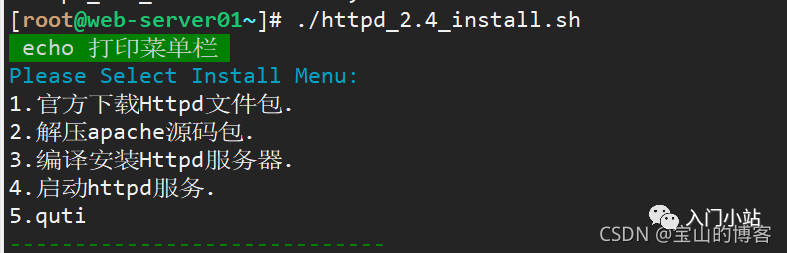
- Using Echo to Print Menu, Displaying the Installation Process of http-2.4
# Echo prints the installation steps for httpd-2.4
[root@web-server01~]# touch httpd_2.4_install.sh

# Grant execution permissions
[root@web-server01~]# chmod o+x httpd_2.4_install.sh
[root@web-server01~]# ./httpd_2.4_install.sh
2.4.3 Color Output in Shell Hello World
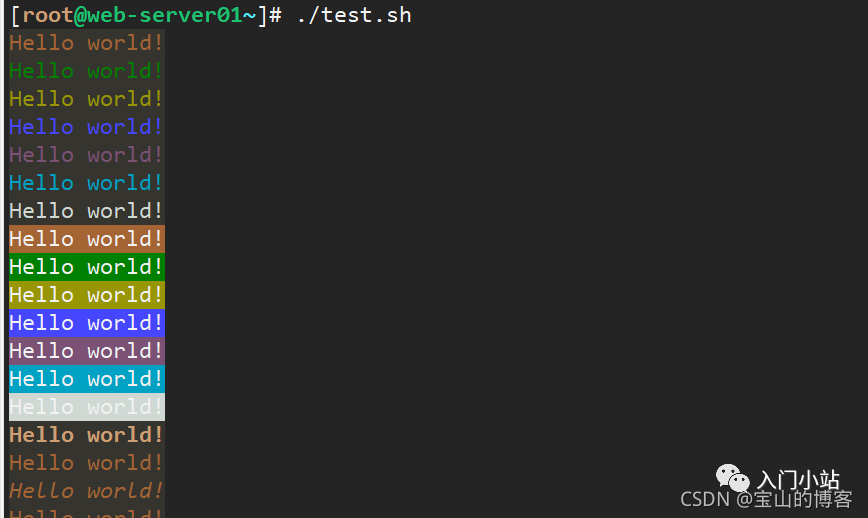
- Echo -e Extension
#!/bin/bash
# This is echo color shell
# by author rivers 2021.09-23
# Font color
for i in {31..37}; do
echo -e "\033[$i;40mHello world!\033[0m"
done
# Background color
for i in {41..47}; do
echo -e "\033[47;${i}mHello world!\033[0m"
done
# Display style
for i in {1..8}; do
echo -e "\033[$i;31;40mHello world!\033[0m"
done
3. Control Flow Statements in Shell Programming
3.1 Introduction to If Conditional Statements
3.1.1 Common Single/Double Branches
- If Conditional Statements
# If conditional judgment statement, usually starts with if and ends with fi. You can also add else or elif for multi-condition judgment.

# Single branch statement --- comparing sizes
if (condition expression); then
  statement1
fi

# Double branch if statement
if (expression)
  statement1
else
  statement2
fi

# Multi-branch conditional statement --- judging scores
if (expression)
  statement1
elif
  statement2
elif
  statement2
fi
3.1.2 Common Logical Operators in If Statements
- Common Logical Judgment Operators
-f   Check if the file exists, e.g., if [ -f filename ];
-d   Check if the directory exists, e.g., if [ -d dir ];
-eq  Equal, used for integer comparison equal;
-ne  Not equal, used for integer comparison not equal;
-lt  Less than, used for integer comparison less than;
-gt  Greater than, used for integer comparison greater than;
-le  Less than or equal, used for integer comparison;
-ge  Greater than or equal, used for integer comparison;
-a  Both sides are true (and) logical expression –a logical expression;
-o  One side is true (or) logical expression –o logical expression;
-z  Empty string;
-x      Whether it has executable permissions;
||      One side is true;
&&      Both sides are true expression.
3.1.3 Using Single Branch Statement to Check if Crond Process is Running — Example
- Check if Crond Service is Running
#!/bin/bash
# This is check crond
# by author rivers on 2021-9.23

# Define a variable name
name=crond
num=$(ps -ef | grep $name | grep -vc grep)
if [ $num -eq 1 ]; then
    echo "$num running!"
else
    echo "$num is not running!"
fi
3.1.4 Check if System Directory Exists — Example
- Check if System Directory Exists
#!/bin/bash
# This is check directory
# by author rivers on 2021-9-27
 if  [  !  -d  /data/rivers  -a  !  -d  /tmp/rivers  ]; then
 mkdir  -p  /data/rivers
fi
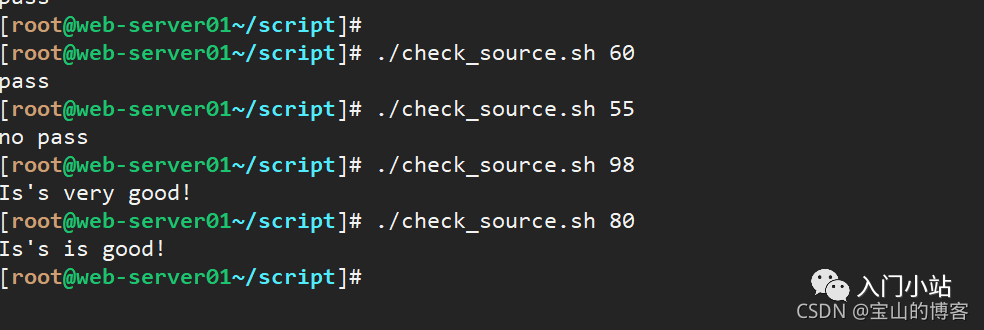
3.1.5 Multiple Condition Judgment for Student Score Levels — Example
- Judging Student Score Levels
# The if statement can directly judge the command status, saving the step of obtaining $?
# If the first condition is met, it will not match further.
#!/bin/bash
# This check grade shell
# by author rivers on 2021-09-27

grade=$1
if [ $grade -gt 90 ]; then
    echo "It's very good!"
elif [ $grade -gt 70 ]; then
    echo "It's good!"
elif [ $grade -ge 60 ]; then
    echo "pass"
else
    echo "no pass"
fi
3.2 Introduction to For Loop Statements
- For Loop Statements
# Format: for name [[ in [ word ... ] ]]; do list; done
for variable in value_list; do
    statement 1
done
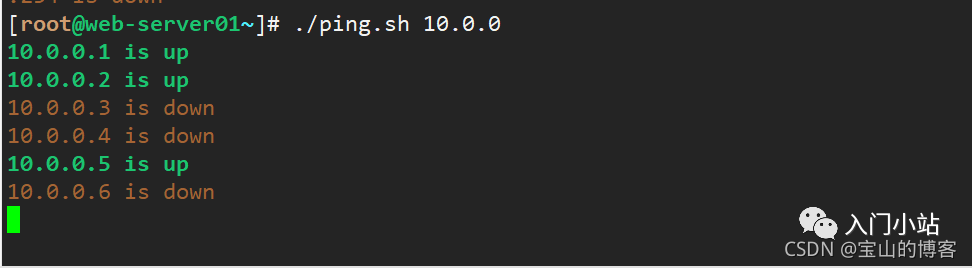
3.2.1 Check if Multiple Hosts in the Same Local Area Network are Alive
- Check the Status of Multiple Hosts
#!/bin/bash
# Check hosts is on/Off
# by rivers on 20219-23

Network=$1
for Host in $(seq 1 254)
do
ping -c 1 $Network.$Host > /dev/null && result=0 || result=1

if [ "$result" == 0 ]; then
echo -e "\033[32;1m$Network.$Host is up \033[0m"
echo "$Network.$Host" >> /tmp/up.txt

else
echo -e "\033[;31m$Network.$Host is down \033[0m"
echo "$Network.$Host" >> /tmp/down.txt
fi
done
3.3 Introduction to While Loop Statements
- While Loop Statements
# While loop statements are similar to for loops, mainly used for looping through a data field or traversing files. Typically used when needing to loop through a file or list, it will continue looping as long as the condition is met, and exit when not met. The syntax format starts with while...do and ends with done.

while (expression)
do
  statement1
done
- Break and Continue Statements
# Break and continue statements
break terminates the loop.
continue skips the current loop.
# Example 1: In an infinite loop, terminate the loop when the condition is met.
while true; do
let N++
if [ $N -eq 5 ]; then
    break
fi
echo $N
done
Output: 1 2 3 4

# Example 2: Example to illustrate the use of continue.
N=0
while [ $N -lt 5 ]; do
let N++
if [ $N -eq 3 ]; then
continue
fi
echo $N
done

Output: 1 2 4

# Print numbers from 1 to 100
i=0
while ((i<=100))
do
        echo $i
        i=`expr $i + 1`
done
3.3.1 Calculate the Sum from 1 to 100 — Example
- Calculate the Sum from 1 to 100
#!/bin/bash
# by author rivers on 2021-9-27
j=0
i=1
while ((i<=100))
do
     j=`expr $i + $j`
     ((i++))
done
echo $j

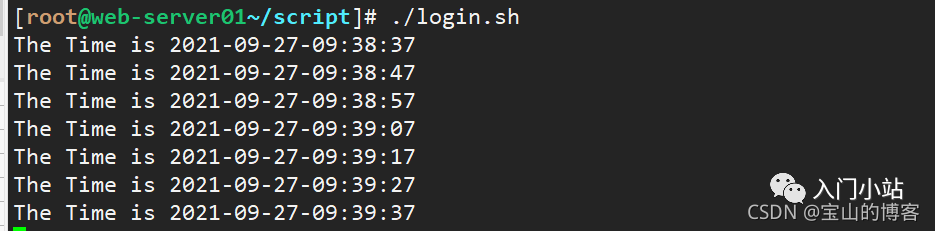
3.3.2 Check if HBS User is Logged into the System Every 10 Seconds — Example
- Check System Login Every 10 Seconds
[root@web-server01~/script]# vim login.sh
#!/bin/bash
# Check File to change.
# By author rivers 2021-9-27
USERS="hbs"
while true
do
        echo "The Time is `date +%F-%T`"
        sleep 10
        NUM=`who | grep "$USERS" | wc -l`
        if [[ $NUM -ge 1 ]]; then
                echo "The $USERS is logged into the system."
        fi
done
3.4 Introduction to Case Selection Statements
- Case Selection Statements
# Case selection statements are mainly used for matching multiple selection conditions and outputting results, similar to if elif statement structures. Typically used for passing input parameters to scripts and printing output results and content. The syntax format starts with Case…in and ends with esac. The syntax format is as follows:
case pattern_name in
  pattern 1)
    command
    ;;
  pattern 2)
    command
    ;;
*)
commands executed if none of the above patterns match
esac
# Each pattern must end with a right parenthesis, and commands must end with double semicolons.
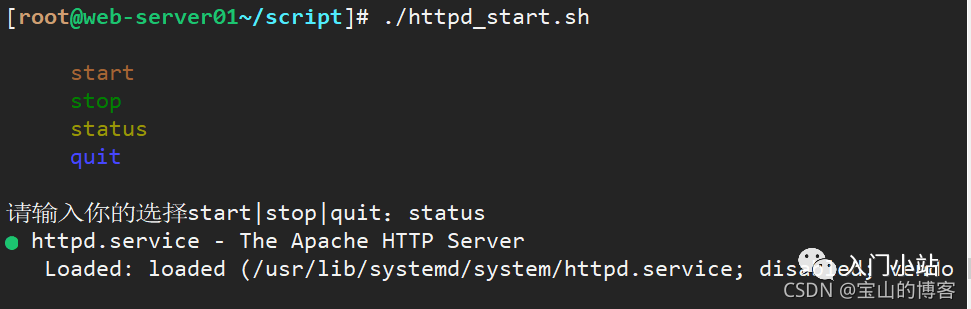
3.4.1 Write an HTTPD Service Start Script Using Case
- Write an HTTP Service Start Script
[root@web-server01~/script]# vim httpd_start.sh
# Check http server start|stop|status
# by author rivers on 2021-9-27
while true
do
    echo -e "
    \033[31m start \033[0m
    \033[32m stop \033[0m
    \033[33m status \033[0m
    \033[34m quit \033[0m
"
read -p "Please enter your choice start|stop|quit: " char
case $char in
start)
    systemctl start httpd && echo "httpd service has been started" || echo "Failed to start"
;;
stop)
    systemctl stop httpd && echo "httpd service has been stopped" || echo "Failed to stop"
;;
restart)
    systemctl restart httpd && echo "httpd service has been restarted" || echo "Failed to restart"
;;
status)
    systemctl status httpd && echo -e "
        httpd service status
";;
quit)
    exit
esac
done
3.5 Introduction to Select Selection Statements
- Select Selection Statements
# Select is a statement similar to a for loop.
# The select statement is generally used for selection and is commonly used for creating menus. It can be combined with PS3 to print menu output information. The syntax format starts with select…in and ends with done:

select i in (expression)
do
statement
done

# Select MySQL Version
#!/bin/bash
# by author rivers on 2021-9-27
PS3="Select a number: "
while true; do
select mysql_version in 5.1 5.6 quit;
do
case $mysql_version in
  5.1)
    echo "mysql 5.1"
      break
      ;;
  5.6)
    echo "mysql 5.6"
       break
       ;;
  quit)
    exit
    ;;
  *)
    echo "Input error, Please enter again!"
      break
esac
done
done
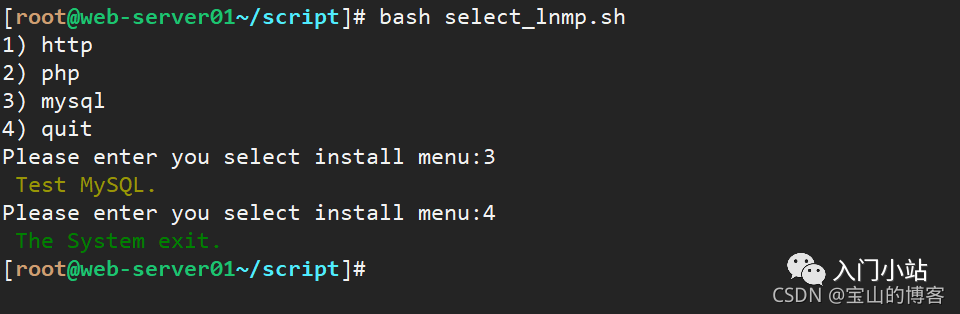
3.5.1 Use Select to Print LNMP Menu — Example
- Print LNMP Selection Menu
#!/bin/bash
# by author rivers on 2021-9-27
PS3="Please enter your select install menu:"
select i in http php mysql quit
do
case $i in
        http)
        echo -e "
                \033[31m Test Httpd \033[0m"
        ;;
        php)
        echo  -e "\033[32m Test PHP\033[0m"
        ;;
        mysql)
        echo -e "\033[33m Test MySQL.\033[0m"
        ;;
        quit)
        echo -e "\033[32m The System exit.\033[0m"
        exit
esac
done
3.6 Shell Functions and Arrays Programming Practice
- Functions
# Shell allows grouping a set of commands or statements into a usable block, called a Shell function. The purpose of Shell functions is to define once and use anytime later without adding duplicate statement blocks in the Shell script. The syntax format starts with function name() { and ends with }.

# Shell functions by default cannot pass parameters into () internally. Shell function parameters are passed by calling the function name, e.g., name args1 args2.

# Function Syntax
func() {
command1
command1
……
}
func  # Directly call the function name
# Shell functions are simple; the function name is followed by double parentheses, then double braces. Call directly by function name without parentheses.
#!/bin/bash
func() {
VAR=$((1+1))
return $VAR
echo "This is a function."
}
func
echo $?
# bash test.sh
2
- Arrays
# An array is a collection of elements of the same type arranged in a certain order.
Format: array=(element1 element2 element3 ...)
Initialize the array with parentheses, separating elements with spaces.
 Method 1: Initialize array array=(a b c)
 Method 2: Create an array and add elements array[index]=element
 Method 3: Use command output as array elements array=($(command))
3.6.1 Define a Function for HTTPD Installation — Example
- Create Apache Software Installation Function
[root@web-server01~/script]# vim xx.sh
#!/bin/bash
# Auto install apache
# By author rivers 2021-09-27
# Httpd define path variable
FILES=httpd-2.2.31.tar.bz2
LES_DIR=httpd-2.2.31
URL=http://mirrors.cnnic.cn/apache/httpd/
PREFIX=/usr/local/apache2/
function Apache_install ()
{
# Install httpd web server
if [[ "$1" -eq "1" ]]; then
        wget -c $URL/$FILES && tar -jxvf $FILES && cd $FILES_DIR && ./configure
        if [ $? -eq 0 ]; then
                make && make install
                echo -e "\n\033[32m--------------------------------------------
                echo -e "\033[32mThe $FILES_DIR Server Install Success !\033[0m
        else
                echo -e "\033[32mThe $FILES_DIR Make or Make install ERROR,Please Check......"
                exit 0
        fi
fi
}
Apache_install 1
# Call the function, passing 1 as a parameter
3.6.2 Traverse Array Elements — Example
- Traverse Array Elements
# Method 1:
#!/bin/bash
IP=(10.0.0.1 10.0.0.2 10.0.0.3)
for ((i=0;i<${#IP[*]};i++)); do
echo ${IP[$i]}
done
# bash test.sh
10.0.0.1
10.0.0.2
10.0.0.3

# Method 2:
#!/bin/bash
IP=(10.0.0.1 10.0.0.2 10.0.0.3)
for IP in ${IP[*]}; do
echo $IP
done
4. Shell Programming Practical Cases
4.1 Practical Case of Shell Script: System Backup Script
- Using Tar Tool for Full and Incremental Backup of Websites, Implementing Automatic Packaging Backup with Shell Script
#!/bin/bash
# Auto Backup Linux System Files
# by author rivers on 2021-09-28

SOURCE_DIR=(
    $*
)
TARGET_DIR=/data/backup/
YEAR=`date +%Y`
MONTH=`date +%m`
DAY=`date +%d`
WEEK=`date +%u`
A_NAME=`date +%H%M`
FILES=system_backup.tgz
CODE=$?
if
    [ -z "$*" ]; then
    echo -e "\033[32mUsage:\nPlease Enter Your Backup Files or Directories\n--------------------------------------------\n\nUsage: { $0 /boot /etc}\033[0m"
    exit
fi
# Determine Whether the Target Directory Exists
if
    [ ! -d $TARGET_DIR/$YEAR/$MONTH/$DAY ]; then
    mkdir -p $TARGET_DIR/$YEAR/$MONTH/$DAY
    echo -e "\033[32mThe $TARGET_DIR Created Successfully !\033[0m"
fi
# EXEC Full_Backup Function Command
Full_Backup()
{
if
    [ "$WEEK" -eq "7" ]; then
    rm -rf $TARGET_DIR/snapshot
    cd $TARGET_DIR/$YEAR/$MONTH/$DAY ; tar -g $TARGET_DIR/snapshot -czvf $FILES ${SOURCE_DIR[@]}
    [ "$CODE" == "0" ] && echo -e  "--------------------------------------------\n\033[32mThese Full_Backup System Files Backup Successfully !\033[0m"
fi
}
# Perform Incremental BACKUP Function Command
Add_Backup()
{
   if
        [ $WEEK -ne "7" ]; then
        cd $TARGET_DIR/$YEAR/$MONTH/$DAY ; tar -g $TARGET_DIR/snapshot -czvf $A_NAME$FILES ${SOURCE_DIR[@]}
        [ "$CODE" == "0" ] && echo -e  "-----------------------------------------\n\033[32mThese Add_Backup System Files $TARGET_DIR/$YEAR/$MONTH/$DAY/${YEAR}_$A_NAME$FILES Backup Successfully !\033[0m"
   fi
}
sleep 3
Full_Backup; Add_Backup
4.2 Practical Case of Shell Script: Collecting System Information
- Shell Script for Automatic Collection of Server Information
cat <<EOF
++++++++++++++++++++++++++++++++++++++++++++++
++++++++Welcome to use system Collect+++++++++
++++++++++++++++++++++++++++++++++++++++++++++
EOF
ip_info=`ifconfig | grep "Bcast" | tail -1 | awk '{print $2}' | cut -d: -f 2`
cpu_info1=`cat /proc/cpuinfo | grep 'model name' | tail -1 | awk -F: '{print $2}' | sed 's/^ //g' | awk '{print $1,$3,$4,$NF}'`
cpu_info2=`cat /proc/cpuinfo | grep "physical id" | sort | uniq -c | wc -l`
serv_info=`hostname | tail -1`
disk_info=`fdisk -l | grep "Disk" | grep -v "identifier" | awk '{print $2,$3,$4}' | sed 's/,//g'`
mem_info=`free -m | grep "Mem" | awk '{print "Total",$1,$2"M"}'`
load_info=`uptime | awk '{print "Current Load: "$(NF-2)}' | sed 's/\,//g'`
mark_info='BeiJing_IDC'
echo -e "\033[32m-------------------------------------------\033[1m"
echo IPADDR:${ip_info}
echo HOSTNAME:$serv_info
echo CPU_INFO:${cpu_info1} X${cpu_info2}
echo DISK_INFO:$disk_info
echo MEM_INFO:$mem_info
echo LOAD_INFO:$load_info
echo -e "\033[32m-------------------------------------------\033[0m"
echo -e -n "\033[36mYou want to write the data to the databases? \033[1m" ; read ensure

if      [ "$ensure" == "yes" -o "$ensure" == "y" -o "$ensure" == "Y" ]; then
        echo "--------------------------------------------"
echo -e  '\033[31mmysql -uaudit -p123456 -D audit -e '''"insert into audit_system values('','${ip_info}','$serv_info','$
cpu_info1 X${cpu_info2}','$disk_info','$mem_info','$load_info','$mark_info')"''' \033[0m '
        mysql -uroot -p123456 -D test -e "insert into audit_system values('','${ip_info}','$serv_info','${cpu_info1} X${cpu_info2}
','$disk_info','$mem_info','$load_info','$mark_info')"
else
        echo "Please wait, exit......"
        exit
fi
4.3 Practical Case of Shell Script: One-Click Deployment of LNMP Architecture
- Batch Deployment of LNMP Architecture
[root@web-server01~/script]# vim lnmp.sh
#!/bin/bash
# Install LNMP
# by author rivers on 2021-9-28

# Nginx Environment Preparation
Nginx_url=https://nginx.org/download/nginx-1.20.1.tar.gz
Nginx_prefix=/usr/local/nginx

# MySQL Environment Preparation
Mysql_version=mysql-5.5.20.tar.gz
Mysql_dir=mysql-5.5.20
Mysql_url=https://downloads.mysql.com/archives/get/p/23/file/mysql-5.5.20.tar.gz
Mysql_prefix=/usr/local/mysql/

# PHP Environment Preparation
Php_version=php-7.2.10.tar.gz
Php_prefix=/usr/local/php-7.2.10/

function nginx_install(){
if [[ "$1" -eq "1" ]]; then
        if [ $? -eq 0 ]; then
                make && make install
        fi
}

function mysql_install(){
if [[ "$1" -eq "2" ]]; then
-DMYSQL_UNIX_ADDR=/tmp/mysql.sock \
-DMYSQL_DATADIR=/data/mysql \
-DSYSCONFDIR=/etc \
-DMYSQL_USER=mysql \
-DMYSQL_TCP_PORT=3306 \
-DWITH_XTRADB_STORAGE_ENGINE=1 \
-DWITH_INNOBASE_STORAGE_ENGINE=1 \
-DWITH_PARTITION_STORAGE_ENGINE=1 \
-DWITH_BLACKHOLE_STORAGE_ENGINE=1 \
-DWITH_MYISAM_STORAGE_ENGINE=1 \
-DWITH_READLINE=1 \
-DENABLED_LOCAL_INFILE=1 \
-DWITH_EXTRA_CHARSETS=1 \
-DDEFAULT_CHARSET=utf8 \
-DDEFAULT_COLLATION=utf8_general_ci \
-DEXTRA_CHARSETS=all \
                echo -e "\033[32mThe $Mysql_dir Server Install Success !\033[0m"
        else
                echo -e "\033[32mThe $Mysql_dir Make or Make install ERROR,Please Check......"
                exit 0
        fi
/bin/cp support-files/my-small.cnf  /etc/my.cnf
/bin/cp support-files/mysql.server /etc/init.d/mysqld
chmod +x /etc/init.d/mysqld
chkconfig --add mysqld
chkconfig mysqld on
fi
}

function php_install(){
if [[ "$1" -eq "3" ]]; then
        if [ $? -eq 0 ]; then
                make ZEND_EXTRA_LIBS='-liconv' && make install
if [[ "$1" -eq "3" ]]; then
 wget $Php_url && tar xf $Php_version && cd $Php_dir && yum install   bxml2* bzip2* libcurl*  libjpeg* libpng* freetype* gmp* libm
crypt* readline* libxslt* -y && ./configure --prefix=$Php_prefix --disable-fileinfo --enable-fpm --with-config-file-path=/etc --wi
  -config-file-scan-dir=/etc/php.d --with-openssl --with-zlib --with-curl --enable-ftp --with-gd --with-xmlrpc --with-jpeg-dir --w
ith-png-dir --with-freetype-dir --enable-gd-native-ttf --enable-mbstring --with-mcrypt=/usr/local/libmcrypt --enable-zip --enable-
mysqlnd --with-mysqli=mysqlnd --with-pdo-mysql=mysqlnd --with-mysql-sock=/var/lib/mysql/mysql.sock --without-pear --enable-bcmath
        if [ $? -eq 0 ]; then
                make ZEND_EXTRA_LIBS='-liconv' && make install
                echo -e "\n\033[32m-----------------------------------------------\033[0m"
                echo -e "\033[32mThe $Php_version Server Install Success !\033[0m"
        else
                echo -e "\033[32mThe $Php_version Make or Make install ERROR,Please Check......"
                exit 0
        fi
fi
}

PS3="Please enter your select install menu:"
select i in nginx mysql php quit
do
case $i in
        nginx)
        nginx_install 1
        ;;
        mysql)
        mysql_install 2
        ;;
        php)
        php_install 3
        ;;
        quit)
        exit
esac
done